Microsoft recently introduced a new default visual design style for Power BI named Fluent 2. I personally disagree with a few choices in the new defaults, including the removal of alternating row colors from Table and Matrix visuals.
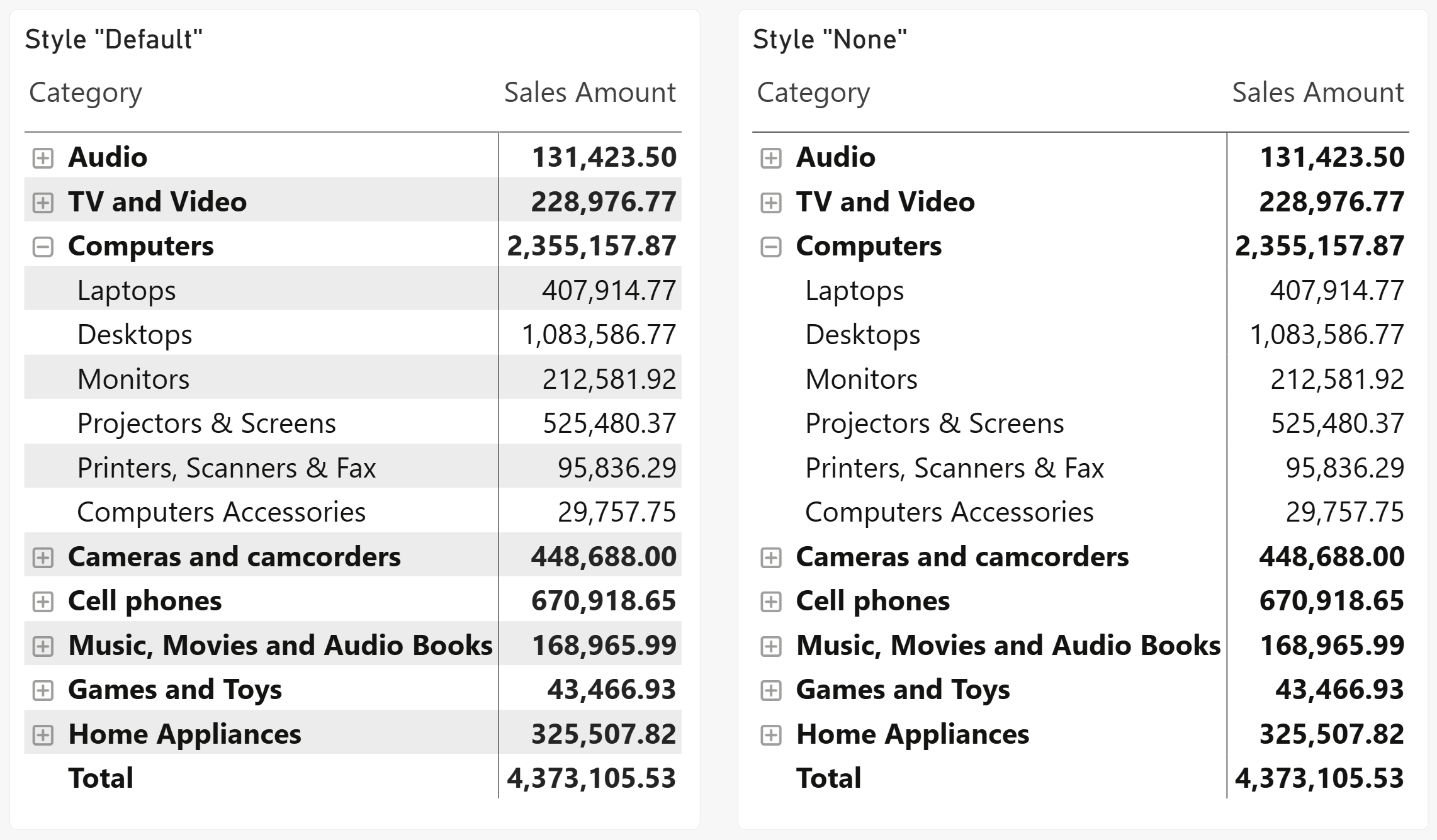
However, the feature is still available. You can select a Matrix and change its Style property from the Format pane, under Visual, Style presets. Here is the difference between the two styles: None is the setting you get when you create a new matrix with Fluent 2, which is on the right in the following screenshot. On the left is how the matrix looks once we set the Style to Default.
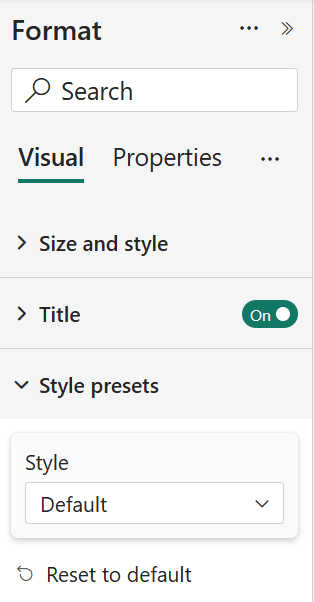
Therefore, fixing one Matrix is straightforward: change its style from None to Default.
Because it took me almost half an hour to fix this properly using modern LLMs, I hope this post will help others (humans and agents) facing the same issue in the future!