 Marco Russo & Alberto Ferrari
In a previous article, Creating a simpler and chart-friendly Date table in Power BI, we showed you how to create a Date table you can use in a line chart with a continuous X-axis instead of a categorical one, even when the granularity is the month rather than the day. That technique stores every level as a DateTime column and relies on custom format strings to display the month name.
The auto date/time feature in Power BI provides the same user experience using a different technique. Its hidden date table uses text columns for quarters and months, sorted by a numeric column. However, the line chart still offers a continuous X-axis when you drill down to the month level. We keep saying that auto date/time is not a best practice, but this behavior is useful. Can we obtain it with our own Date table? Yes, we can.
If you have a Date table in your model (as you should!), this article explains how to enable the continuous X-axis in your report when the user groups dates by year, quarter, month, or week.
How auto date/time navigation works
The table created by auto date/time exposes a single hierarchy with four levels: Year, Quarter, Month, and Day. You cannot customize these levels, and the user does not see any other column in that table. Internally, Quarter and Month are text columns sorted by a hidden numeric column.
If we place the Date hierarchy from the auto date/time column on the X-axis of a line chart and drill down to the Month level, the X-axis type is still Continuous, whereas when we use the Year Month column of the classic Date table, the X-axis is Categorical.
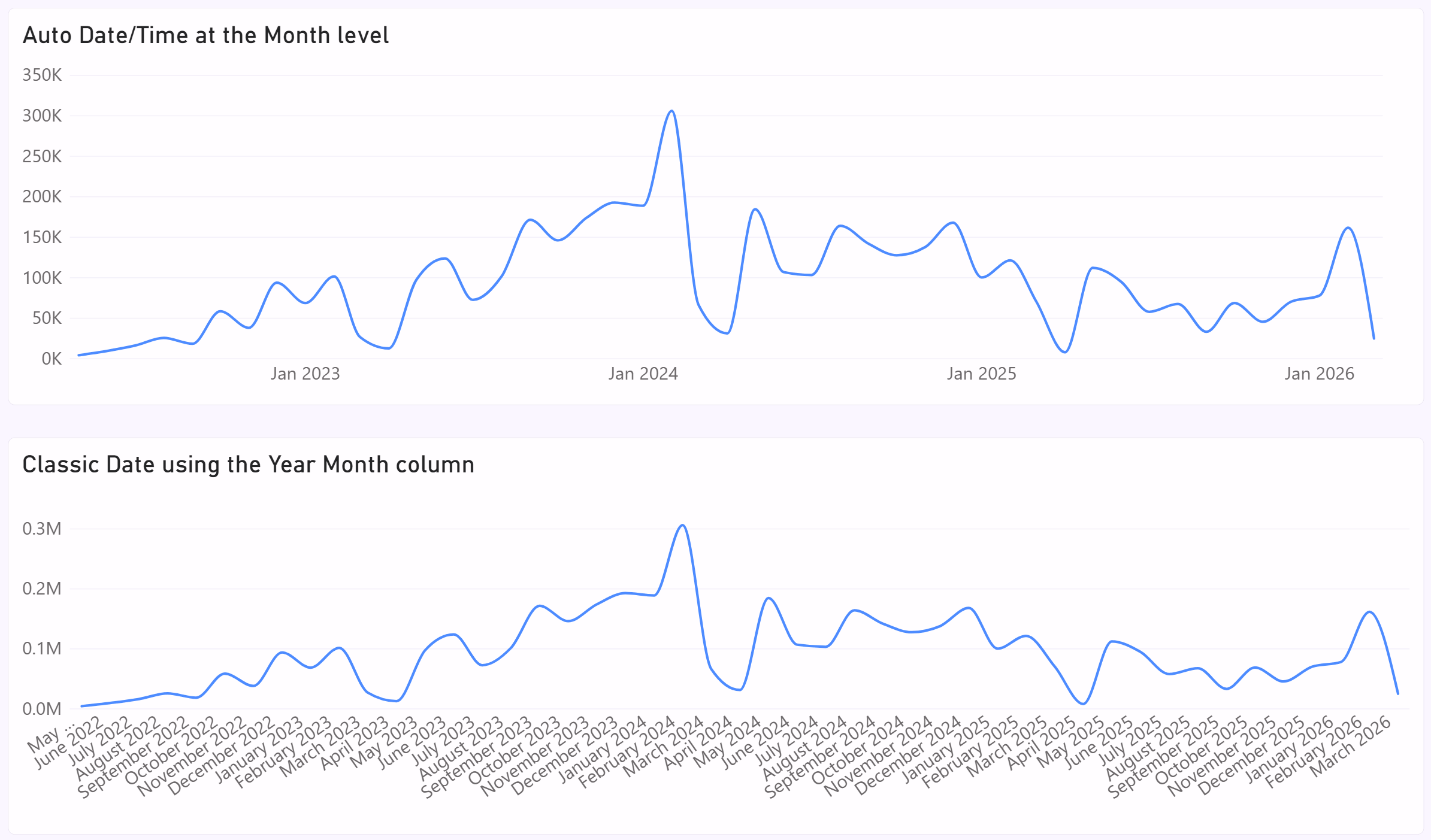
The Type property of the line chart is usually available only when you can switch between Ordinal and Categorical, as in the auto date/time example. However, it is hidden when Power BI forces the X-axis to Categorical, as in the previous line chart for the classic Date table.
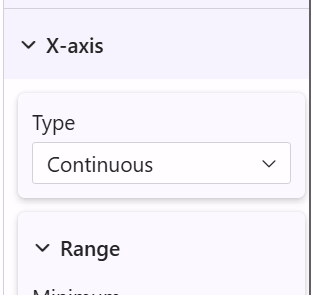
At first glance, this looks like an exception that Power BI makes for its own tables. But in reality, the line chart offers the continuous axis because the hidden table carries specific metadata, and that metadata tells the visual how to treat each level of the hierarchy. If we apply the same metadata to our Date table, we get the same behavior.
This is the TMDL definition of the hidden table generated by auto date/time, stripped of annotations, formats, lineage tags, and summarize attributes:
table LocalDateTable_eee2517b-a62f-4b3d-a512-4aa237fa2329
    isHidden
    showAsVariationsOnly
    column Date
        dataType: dateTime
        isHidden
        dataCategory: PaddedDateTableDates
        sourceColumn: [Date]

    column Year = YEAR([Date])
        dataType: int64
        isHidden
        dataCategory: Years

    column MonthNo = MONTH([Date])
        dataType: int64
        isHidden
        dataCategory: MonthOfYear

    column Month = FORMAT([Date], "MMMM")
        dataType: string
        isHidden
        dataCategory: Months
        sortByColumn: MonthNo

    column QuarterNo = INT(([MonthNo] + 2) / 3)
        dataType: int64
        isHidden
        dataCategory: QuarterOfYear

    column Quarter = "Qtr " & [QuarterNo]
        dataType: string
        isHidden
        dataCategory: Quarters
        sortByColumn: QuarterNo

    column Day = DAY([Date])
        dataType: int64
        isHidden
        dataCategory: DayOfMonth
        summarizeBy: none

    hierarchy 'Date Hierarchy'
        level Year
            column: Year
        level Quarter
            column: Quarter
        level Month
            column: Month
        level Day
            column: Day
Note the dataCategory property on the column: only those on Date and Year matter. Indeed, the dataCategory for Quarter is Quarters when it should be QuarterOfYear, but these intermediate levels between Year and Date are ignored by Power BI.
The metadata needed
The line chart provides the continuous axis on a hierarchy when all these conditions are met:
- The columns come from a user hierarchy. Placing the individual columns from a table on the X-axis is not enough; you must use hierarchy levels.
- The lowest level of the hierarchy is a date column, with dataCategory set to PaddedDateTableDates.
- The top level of the hierarchy has dataCategory set to Years.
- The visual includes only levels of the hierarchy starting from the top level marked as Years.
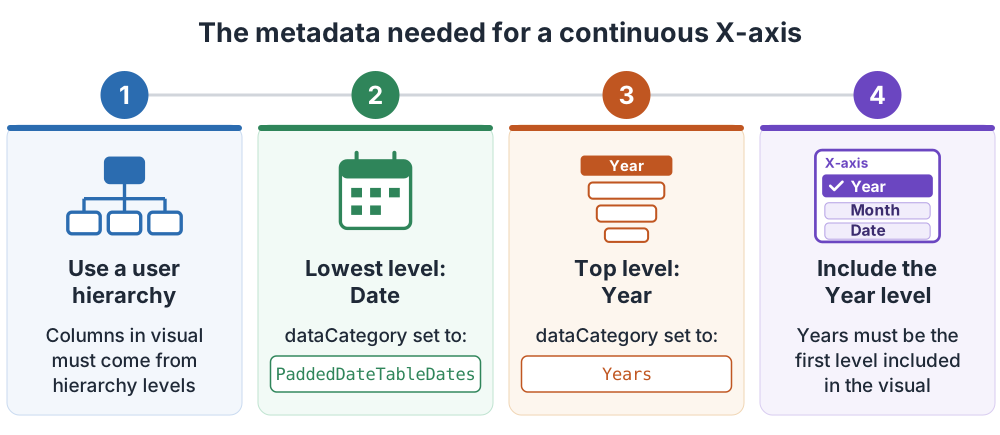
That is it. You do not need anything else, but a few practical examples can help!
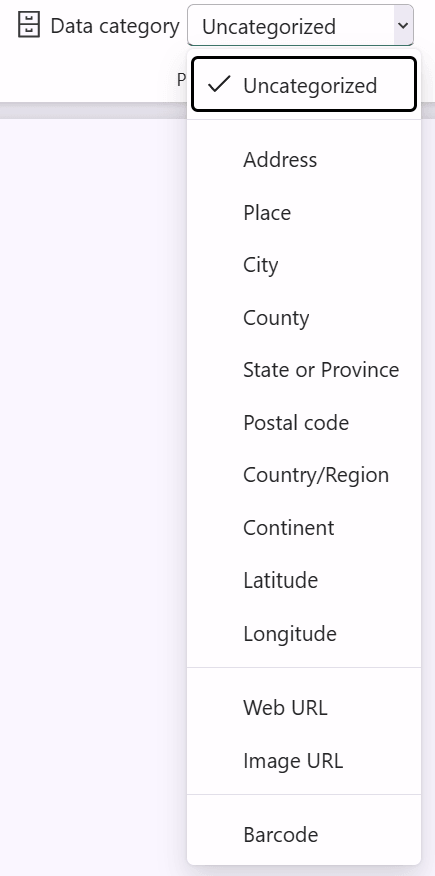
The date-related values accepted by dataCategory on a column are: Years, Quarters, QuarterOfYear, Months, MonthOfYear, Weeks, WeekOfYear, WeekOfMonth, Days, DayOfYear, DayOfMonth, DayOfWeek, Hours, Minutes, Seconds, Date, PaddedDateTableDates. Power BI Desktop does not show any of them in the Data category dropdown, which only lists geography, URL, image, and barcode categories. You need the TMDL view in Power BI Desktop, Tabular Editor, or the Power BI Modeling MCP server described later.
Configuring the hierarchies
In the Date table we created in our sample model, we already have columns like Year, Year Month sorted by Year Month Number, and so on. This is a partial definition to highlight the properties to set in the TMDL view of Power BI Desktop, or in Tabular Editor.
table Date
    dataCategory: Time

    column Date
        dataType: dateTime
        isKey
        formatString: mm/dd/yyyy
        dataCategory: PaddedDateTableDates
        sourceColumn: Date

    column Year
        dataType: int64
        dataCategory: Years
        sourceColumn: Year

    column 'Year Quarter'
        dataType: string
        isHidden
        sourceColumn: Year Quarter
        sortByColumn: 'Year Quarter Number'
[...]

    hierarchy Year-Quarter-Month
        level Year
            column: Year
        level Quarter
            column: 'Year Quarter'
        level Month
            column: 'Year Month Short'
        level Date
            column: Date

    hierarchy Year-Month
        level Year
            column: Year
        level 'Year Month'
            column: 'Year Month'
        level Date
            column: Date
Three things to highlight:
- The table is marked as a date table. This sets dataCategory: Time on the table and isKey on the Date Only the latter (isKey) is required to activate the Continuous axis; the dataCategory property of the table is ignored.
- The Date[Date] column has dataCategory: PaddedDateTableDates. This is an undocumented but required property to activate the Continuous axis.
- The hierarchies start at Year and end at Date. The intermediate levels can be any column with a date-related category.
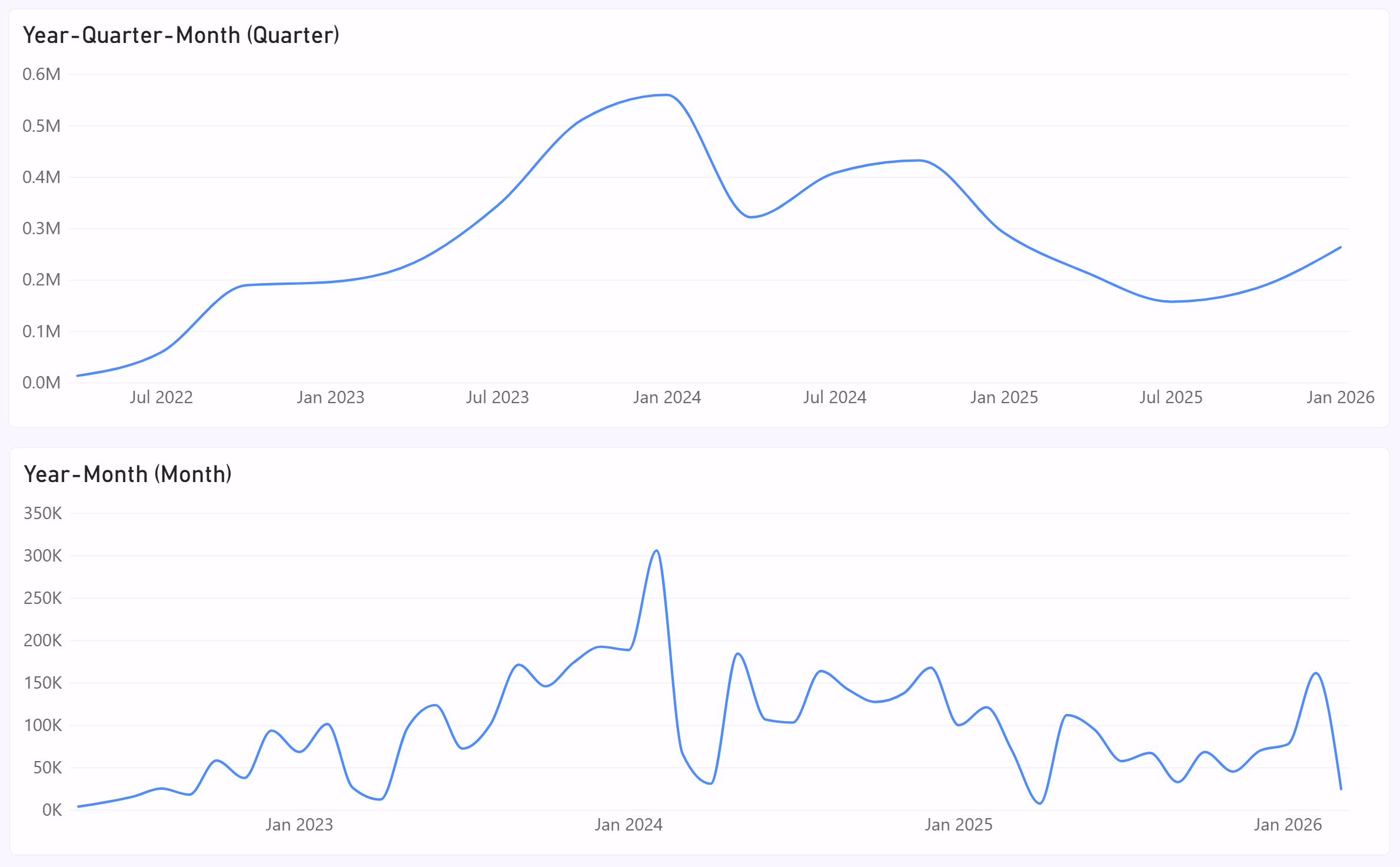
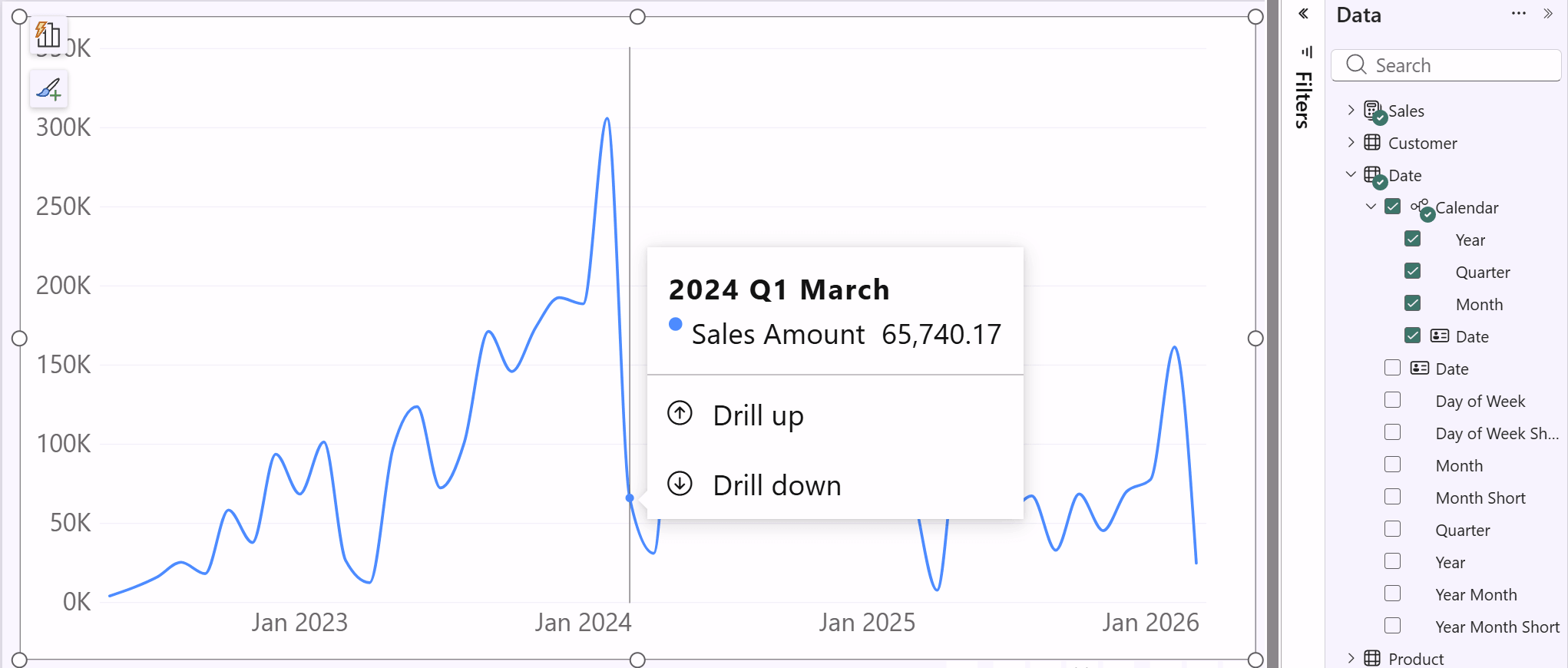
In the following screenshot, you can see the continuous chart used at the quarter and month level of two different hierarchies.
Considerations about visualizations
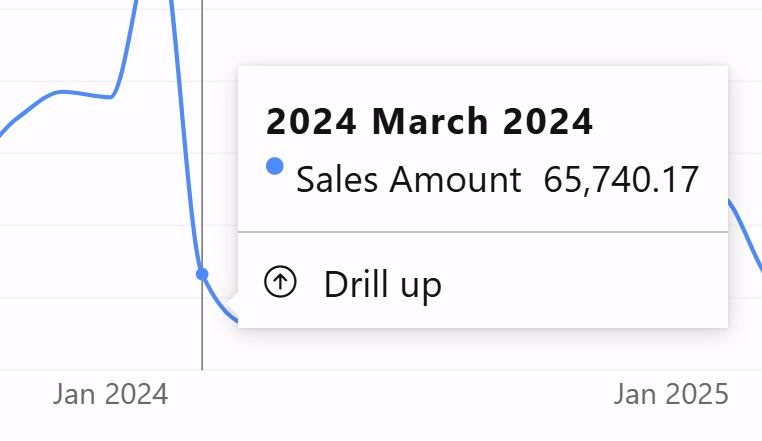
The line chart tooltip shows the Year and Month level of the hierarchy, even when the month-level column is Year Month, which already includes the year. For example, in the Year-Month hierarchy, the tooltip displays 2024 twice: once at the year level and again in the month description.
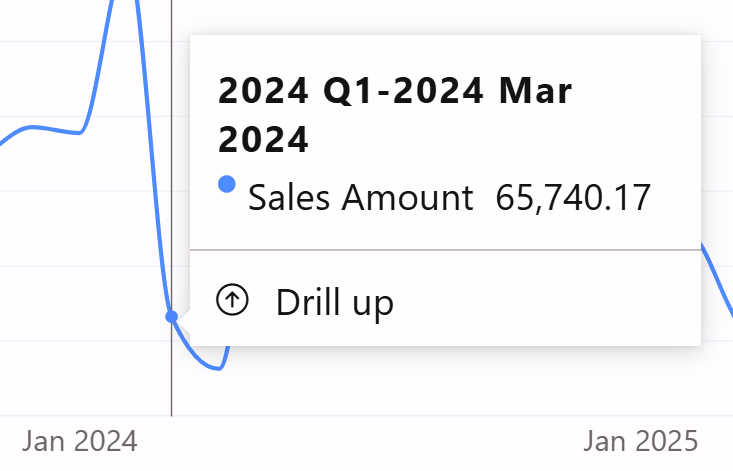
This is more visible when we use the Year-Quarter-Month hierarchy: the drill-down to the Month level shows the name in three levels in the tooltip: Year, Quarter, and Month.
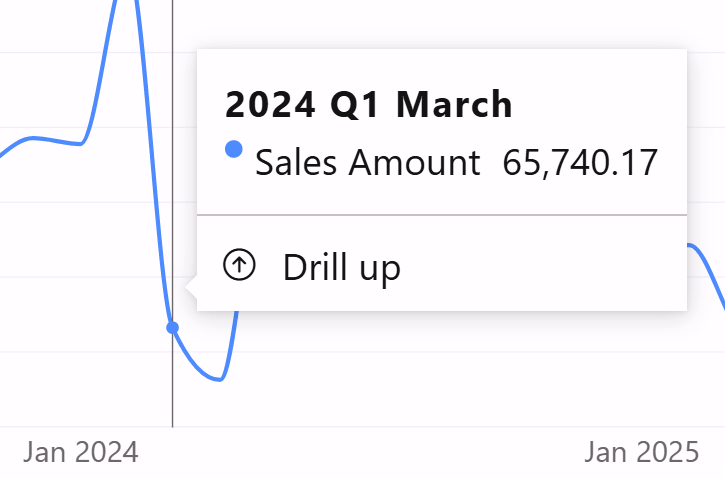
This is mainly a cosmetic issue, but it is worth noting. To improve the tooltip user experience, you can use the Quarter and Month columns in the Date table to create a hierarchy that shows non-redundant names in the tooltip. For example, this is the tooltip of the Chart-Friendly hierarchy included in the sample file.
The metadata does not change the behavior of visuals that do not have a continuous axis type, such as the clustered column chart. The hierarchy works as usual there and in any other visual, including slicers and filters.
Automating the change with the Power BI Modeling MCP server
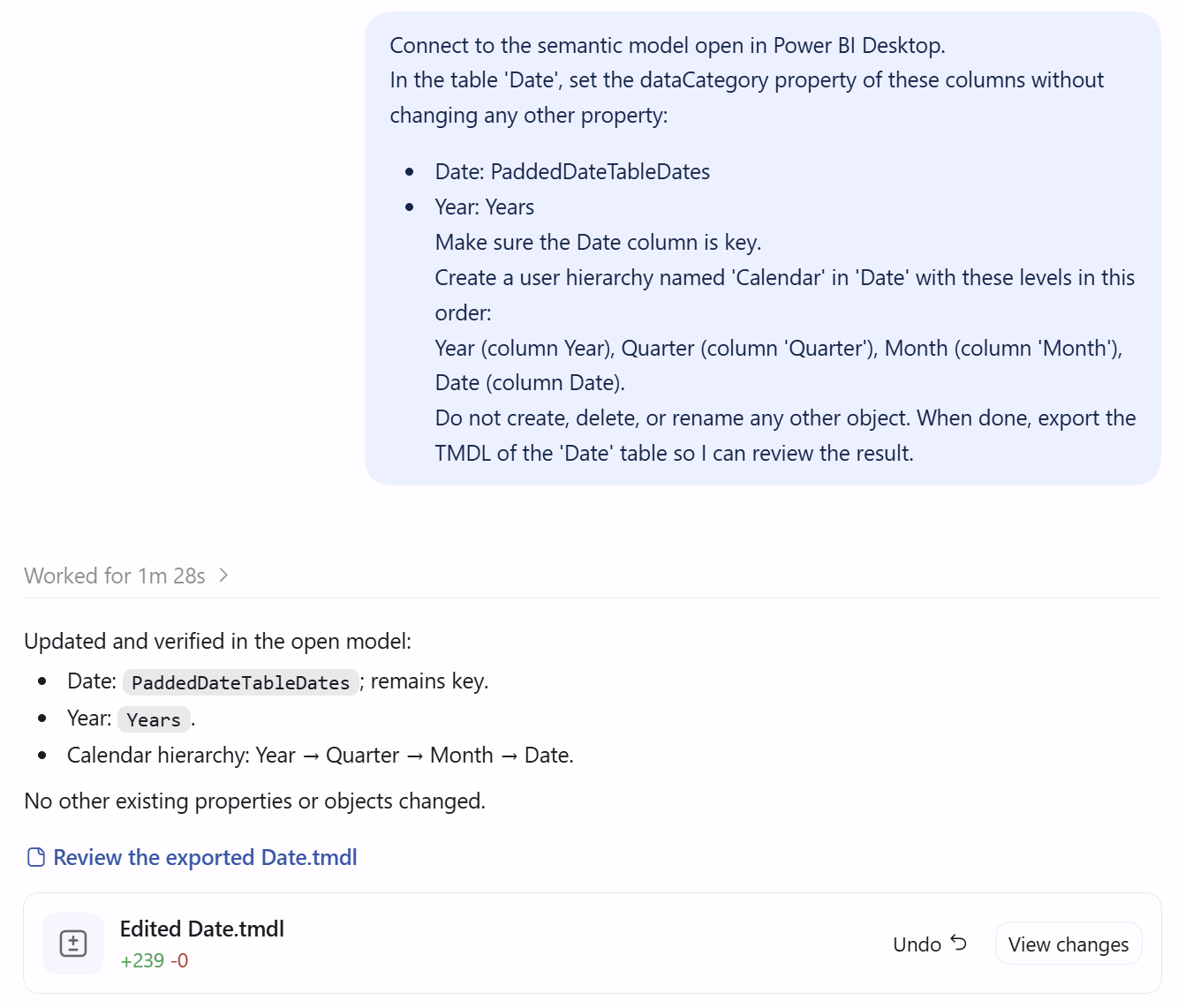
If you use an LLM with the Power BI Authoring MCP server connected to Power BI Desktop, you can describe the configuration instead of writing the TMDL by hand. The server exposes operations on columns and user hierarchies, including the dataCategory property. You can find an updated description of the AI clients available for this task here: AI tools for Power BI Desktop.
Here is a prompt that produces the configuration of the first example:
Connect to the semantic model open in Power BI Desktop.
In the table 'Date', set the dataCategory property of these columns without changing any other property:
- Date: PaddedDateTableDates
- Year: Years
Make sure the Date column is key.
Create a user hierarchy named 'Calendar' in 'Date' with these levels in this order:
Year (column Year), Quarter (column 'Quarter'), Month (column 'Month'), Date (column Date).
Do not create, delete, or rename any other object. When done, export the TMDL of the 'Date' table so I can review the result.
The LLM completes the action requested smoothly.
In Power BI Desktop, we have the new Calendar hierarchy that displays the expected tooltip by selecting a point on the Month level on the Continuous X-axis.
Conclusions
The continuous X-axis for a date hierarchy on a line chart is not a privilege of the auto date/time table. It depends on a few dataCategory values (the most important one being PaddedDateTableDates on the date column) and a user hierarchy that starts with the year and ends with the date. With these properties set through TMDL, Tabular Editor, or an MCP-driven LLM, your Date table offers the same navigation without the downsides of auto date/time.
We covered another approach in a previous article that does not require metadata which is not visible in the Power BI Desktop UI. However, in some cases you may want more control over the name of each level, or other clients you use may not fully support date columns with a custom format for hierarchy levels. The solution in this article may feel more “natural” to users with past experience navigating auto date/time tables.