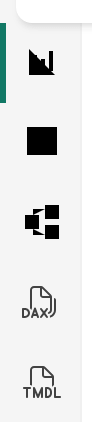
In mid-January 2026, many Power BI Desktop users began noticing a strange visual regression: several icons in the interface—including the Data, Model, and DAX icons—appeared as solid black shapes instead of their normal outlines. The issue appeared suddenly, even on machines where Power BI Desktop had not been updated. Because it happened the same week that Power BI Desktop January 2026 was released, this led to understandable confusion.
The root cause was not Power BI Desktop itself but an unexpected regression in the WebView2 runtime, one of the external dependencies used to render parts of the UI. Microsoft confirmed the issue and is preparing an official fix.
Until the update is released, there is a safe temporary workaround that restores the proper icons. This is useful if you need to record videos (like me!), run demos, or simply work without visual glitches.
Below is the full procedure.
Why the issue appeared
Power BI Desktop uses Microsoft Edge WebView2 to render several UI components. A recent WebView2 update introduced a regression that broke the rendering of some vector-based icons, causing them to show up as filled black shapes.
Even older versions of Power BI Desktop were affected because WebView2 updates independently from Desktop.
Until the fixed version is published and distributed, affected users will continue to see black icons unless they override WebView2 manually.
Temporary workaround: pin Power BI Desktop to a previous WebView2 fixed version
This workaround forces Power BI Desktop to use a known-good WebView2 build rather than the most recent (faulty) one. It requires no system-wide changes and is fully reversible.
IMPORTANT: this workaround stops automatic updates of WebView2; you should remove this workaround once the bug is fixed by Microsoft. Set a reminder to check that every week.
Step 1 — Download a previous WebView2 Fixed Version Runtime
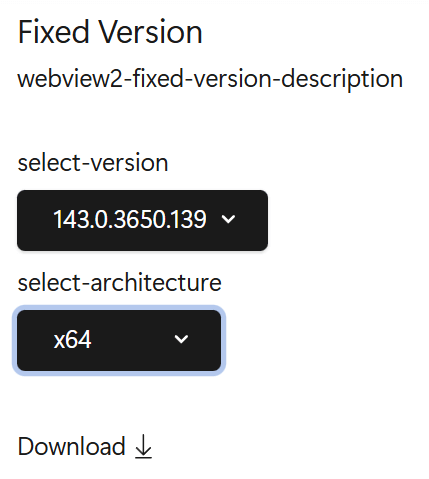
- Visit:
https://developer.microsoft.com/en-us/microsoft-edge/webview2 - Locate the Fixed Version section.
- Choose an earlier version (for example: 143.0.3650.139).
- Select x64 and download the package.
Step 2 — Extract the CAB file
The downloaded file is a CAB package. Extract it into a folder, such as:
C:\Uti\Microsoft.WebView2.FixedVersionRuntime.143.0.3650.139.x64
(You must extract it; Power BI cannot use the CAB directly.)
Step 3 — Create the WEBVIEW2_BROWSER_EXECUTABLE_FOLDER environment variable
This step tells Power BI Desktop to load WebView2 from the folder you extracted earlier. If you have never created an environment variable before, follow the full click-by-click process below.
- Open the Windows System Properties window
- Press Windows Key, type “environment variables”, and select “Edit the system environment variables”.
Alternatively:- Open Control Panel → System and Security → System → Advanced system settings.
- Press Windows Key, type “environment variables”, and select “Edit the system environment variables”.
- Open the Environment Variables dialog
- In the System Properties window, go to the Advanced tab (usually already selected).
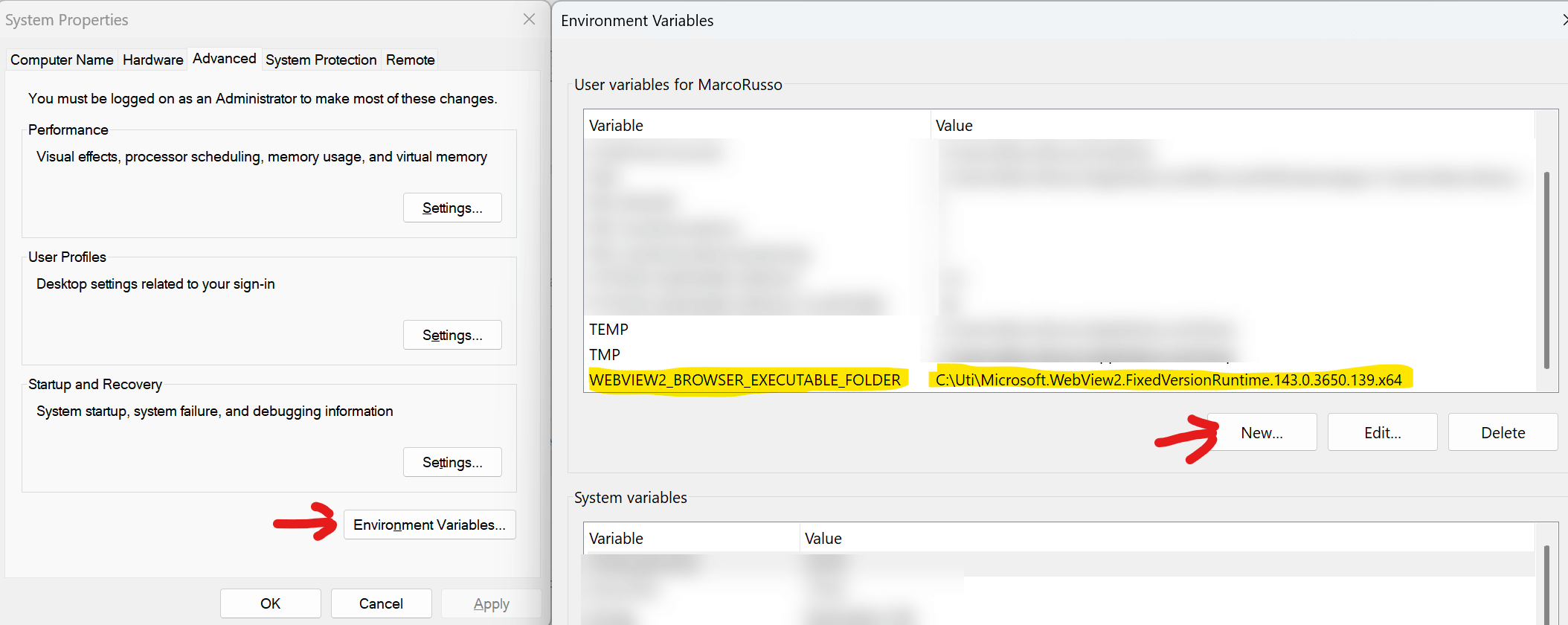
- Click Environment Variables… at the bottom-right (this is the button indicated by the left arrow in the bitmap).
- Create a new user variable
- In the top section (User variables for ), click New… (the button indicated by the right arrow in the bitmap).
- Enter the variable details
- Variable name:
WEBVIEW2_BROWSER_EXECUTABLE_FOLDER - Variable value:
Paste the full path of the folder where you extracted the WebView2 runtime, for example:C:\Uti\Microsoft.WebView2.FixedVersionRuntime.143.0.3650.139.x64
- Variable name:
- Click OK to save, then OK again to close Environment Variables, and finally OK to close System Properties.
- Close Power BI Desktop if it is running, then open it again so the environment variable is applied.
This completes the configuration. Power BI Desktop will now load WebView2 from that specific folder instead of the system runtime.
Step 4 — Launch Power BI Desktop
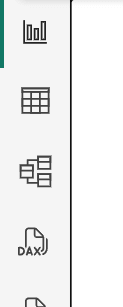
Start Power BI Desktop as usual.
The icons should now display correctly.
Removing the Workaround
Once Microsoft ships the patched WebView2 release (and the fix propagates), you should:
- Remove the environment variable
DeleteWEBVIEW2_BROWSER_EXECUTABLE_FOLDER. - Delete the temporary folder you extracted earlier.
Power BI Desktop will then return to using the standard system WebView2 runtime.
Final Notes
This workaround does not modify your Power BI installation and does not affect Windows globally. It simply redirects Power BI Desktop to use a stable WebView2 runtime until Microsoft finalizes the fix.
If you are preparing tutorials, training content, or video recordings, applying this workaround ensures the UI appears correctly and avoids unnecessary confusion.
Once the official fix is available, remove the override and return to the standard configuration.
DISCLAIMER: While I wrote a draft of the workaround for internal use, I used ChatGPT to create a longer, more detailed step-by-step description to make it easier to apply.