 Marco Russo & Alberto Ferrari
A calculated column is computed when the table is refreshed and stored in the model (in Import mode), just like any other column, so its value does not depend on the user who is connected. The introduction of user-aware calculated columns in Power BI changes this picture because we can define a calculated column that is evaluated at query time and depends on the user running the query. This behavior can be obtained by setting the Expression Context property of a calculated column to User Context.
NOTE: You may find the term “user-context-aware” in articles and documentation from other sources. At SQLBI, we felt that “user-aware” is simpler and less ambiguous as to the scope of this feature. The focus is really on user awareness.
This feature might seem to be a small addition intended to support localization scenarios. However, the implications go beyond localization: any calculated column with a simple expression can become a virtual calculated column: a column that exists in the model but is not stored in memory. Indeed, a consequence of user-aware calculated columns is that they do not materialize the columns, even in Import mode. The ability to manage unmaterialized calculated columns is a feature required to support calculated columns in Direct Lake over OneLake; this topic is not discussed in this article.
We start by introducing the Expression Context property, which enables user-aware calculated columns. We then present three main use cases for user-aware calculated columns: localization based on user culture, row-level calculations stored as virtual columns, and securing sensitive columns without relying on object-level security (OLS). In the second part of the article, we provide more information about the internals of this feature if you are interested in knowing more about the implications of materialization, the DAX functions that make a column user-aware, and the limitations of user-aware calculated columns.
The Expression Context property
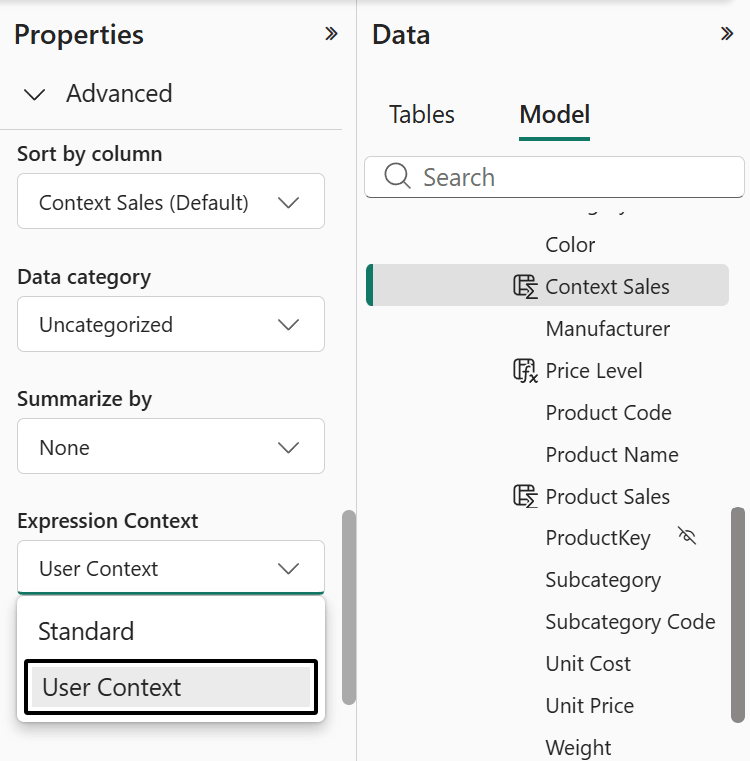
When we create a calculated column in Power BI, we can now choose the Expression Context for the column. The property has two values: Standard and User Context. Standard is the default and represents the historical behavior: the column is computed at process time, the result is stored in the model, and the expression cannot use user-aware DAX functions like USERCULTURE.
User Context is the new option. A column with Expression Context set to User Context is called a user-aware calculated column. The expression is evaluated at query time, in an empty filter context, with access to the model restricted by active security roles. Within this evaluation, the engine recognizes the user-aware DAX functions and returns values that depend on the current user.
The semantics of a user-aware calculated column are otherwise identical to those of a standard calculated column. The expression is evaluated for each row of the table, with a row context active on the table itself. Relationships behave as expected, RELATED and RELATEDTABLE work, and calculations on the row are performed as usual. The result of the expression does not depend on the report or on any visual: the value of a user-aware column is the same in every visual that displays it, given that the user is the same.
In other words, user-aware calculated columns have the same row-by-row semantics as a standard calculated column, with three differences:
- The calculated column is executed within the security context of the current user.
- The result of the calculated column can depend on the user identity if its DAX expression includes user-aware functions.
- The column is not materialized.
When a User Context column does not use any user-aware function and does not access rows from other tables, it returns the same value for every user. The only difference from a Standard calculated column is that it is not materialized. We call these columns virtual calculated columns: columns that exist in the model and are available to filters, slicers, and visuals, but are not stored in memory.
Use cases for user-aware calculated columns
We identified three main use cases for user-aware calculated columns; we expect more patterns to emerge in the future.
Localization with user-aware calculated columns
Localization is the main use case that motivated the design of user-aware calculated columns. The scenario is straightforward: we want columns whose values depend on the language of the user running the report. For example, consider a Date table that localizes month and day-of-week names. A natural choice is the same formula we would use as a part of a Date calculated table, just with the addition of the USERCULTURE parameter:
Month =
FORMAT (
    'Date'[Date],
    "mmmm",
    USERCULTURE()
)
However, when a calculated column must be computed at query time, we want to reduce its dependence on cardinality to control the overall execution cost. For example, if a column represents a month, it is better to depend only on a column that has the same cardinality (Month Number) instead of depending on a column with more unique values that would return the same result (Date):
Month =
FORMAT (
    DATE ( 2020, 'Date'[Month Number], 1 ),
    "mmmm",
    USERCULTURE()
)
Month Short =
FORMAT (
    DATE ( 2020, 'Date'[Month Number], 1 ),
    "mmm",
    USERCULTURE()
)
For these expressions to work, we set Expression Context to User Context in both calculated columns, Month and Month Short. With the columns configured as user-aware, USERCULTURE returns the culture of the current user, and the FORMAT function returns the month name in the appropriate language. A German user sees Januar, an Italian user sees Gennaio, and a French user sees Janvier.
Similarly, we create two columns to display the day of the week that depend on Date[Day of Week Number]:
Day of Week =
FORMAT (
    DATE ( 2020, 1, 4 + 'Date'[Day of Week Number] ),
    "dddd",
    USERCULTURE()
)
Day of Week Short =
FORMAT (
    DATE ( 2020, 1, 4 + 'Date'[Day of Week Number] ),
    "ddd",
    USERCULTURE()
)
These columns change the names displayed in a report depending on the user. In the following example, the same report is shown side by side, for two users with different languages; column and measure names are displayed without translation (e.g., Year, Day of Week, and Sales Amount).
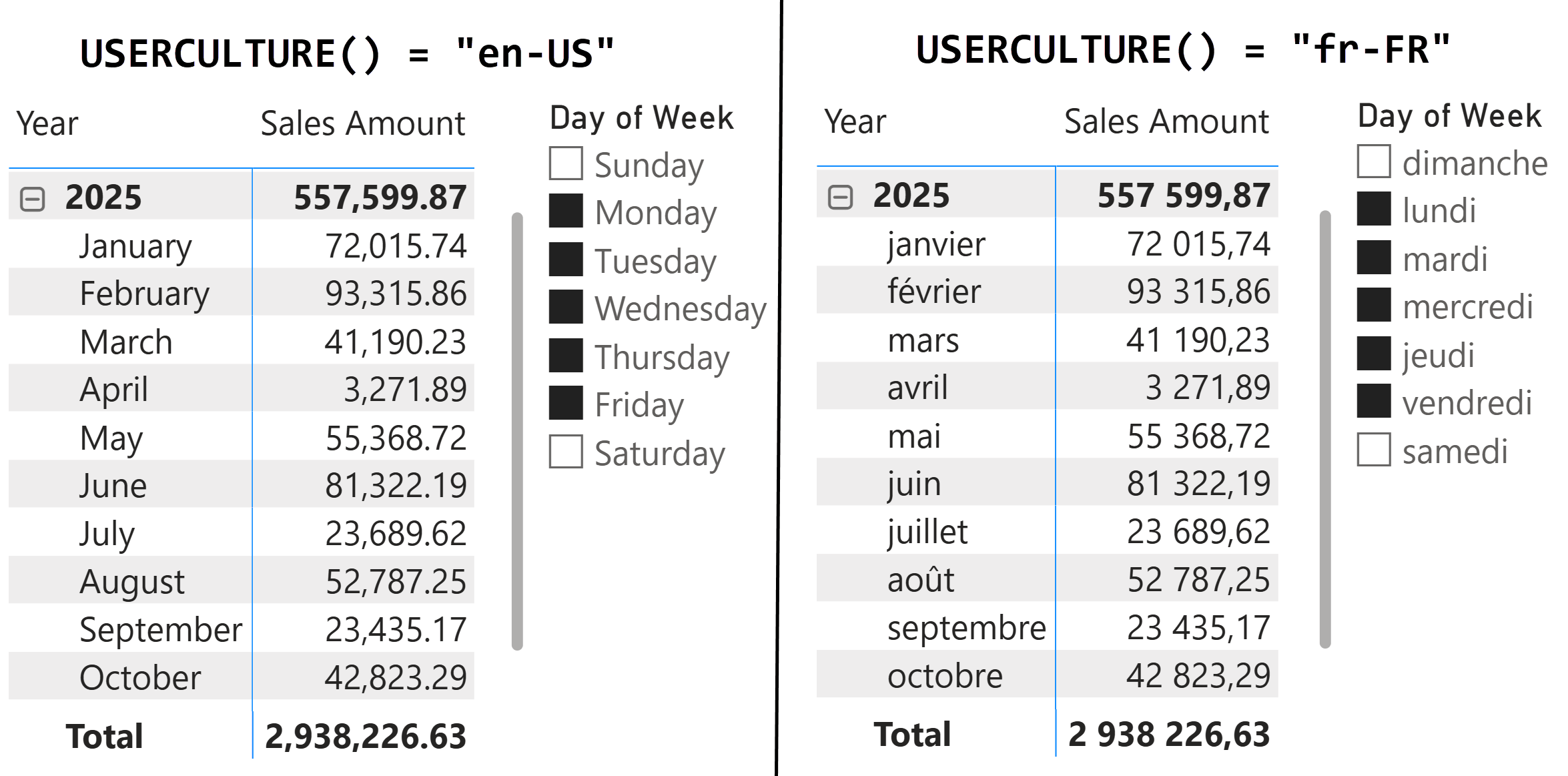
In this article, we discuss a new feature for translating the content of the model, not its metadata – such as column and measure names. Those are covered in the existing documentation. If you are new to localization in Power BI semantic models and you want to learn more about metadata and report translations, please take a look at Plan Translation for Multiple-Language Reports in Power BI in the Microsoft documentation.
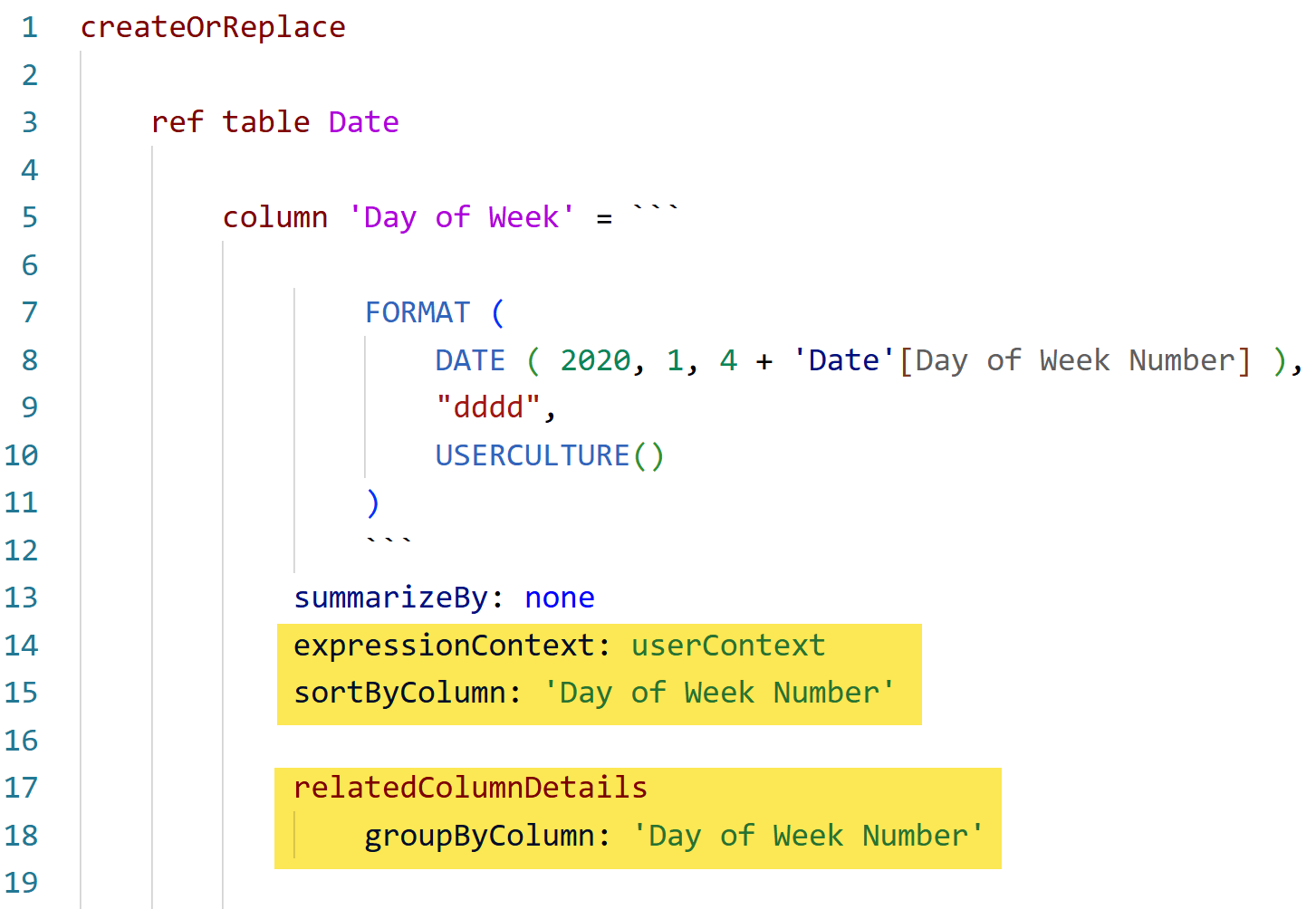
However, the previous report shows another important design challenge for the semantic model: if we want to make sure that the selection applied to a report shown in a certain language will be preserved when the same report is shown in another language, we cannot apply a filter or a selection directly on a user-aware column. To prevent Power BI from doing that, we should use the Group By Columns property, instructing our Month and Day of Week columns to use Month Number and Day of Week Number, respectively, not only for the sort order but also to identify the unique values of the columns. This way, the slicer will store the filter as a selection of numeric values from Date[Day of Week Number] rather than a list of translated strings that would not exist in other languages. We can edit the Group By Columns property in TMDL view or in Tabular Editor, and we provide more information about this property in the Understanding Group By Columns in Power BI article on SQLBI.
For example, the following screenshot shows the TMDL view definition of Day of Week, but we can generalize the rule for any user-aware column we want to use for translations:
- Use the USERCULTURE function in the DAX expression of the calculated column,
- Set Expression Context to User Context,
- Apply the proper Sort by Column property if required,
- Assign the proper Group by Columns setting to identify the column(s) to use to identify the selection without relying on a translated, user-aware column.
Virtual calculated columns for row-level calculations
As we mentioned earlier, virtual calculated columns enable redundant columns without storage and processing costs being incurred.
For example, instead of importing Sales[Line Amount] we often compute it by using Sales[Quantity] * Sales[Net Price] to keep the model consistent and efficient, as in this measure:
Sales Amount =
SUMX (
    Sales,
    Sales[Quantity] * Sales[Net Price]
)
This works well for aggregations, but the measure becomes the only way to access the calculation, and there is no Sales[Line Amount] field to drag into a slicer or use in the filter pane. User-defined functions solve the centralization problem, but they must still be invoked from other DAX expressions, and a user cannot apply a filter on Sales[Line Amount] through them.
User-aware calculated columns offer a new option. The classic Line Amount expression in a Sales table can be written as a virtual calculated column:
Line Amount = Sales[Quantity] * Sales[Net Price]
In a Standard calculated column, this expression produces a high-cardinality column. The values are computed at process time, stored in memory, and compressed by VertiPaq with limited efficiency precisely because of the high cardinality. However, the calculation itself is trivial and could be performed at query time at a negligible cost.
When Expression Context is set to User Context, the same column becomes virtual. The expression is evaluated at query time when a measure or visual references the column. There is no memory cost, no processing cost, and the logic remains centralized in the model where it belongs. We can still write filters and measures that reference Sales[Line Amount] without the cost of a redundant high-cardinality column.
The potential higher cost at query time is limited when we have simple expressions like this one. The reason is that the formula engine can push the calculation to the storage engine when the expression involves only basic operators on columns of the same table. In this case, the storage engine performs the multiplication during the column scan, with no need for the formula engine to iterate row by row. For tables with fewer than 100 million rows, the cost difference compared to reading a materialized column is typically not relevant; we will revisit this with concrete benchmarks once the feature reaches general availability.
The story is different when the expression cannot be pushed to the storage engine, as is the case with complex DAX measures with iterators. Whenever the expression triggers a callback to the formula engine for each row, the cost can grow significantly. As a rule, simple arithmetic on columns of the same table is pushed down efficiently, whereas expressions involving table functions, complex IF branches, or user-aware functions usually require formula engine intervention.
In short, virtual calculated columns work best for row-level expressions that the storage engine can compute. This way, we obtain the centralization advantages of a column in the model (the logic lives in one place, and the column is available to filters, slicers, and visuals) without paying the cost of redundant high-cardinality columns. We will revisit the full guidance in the Conclusions.
Important: Virtual calculated columns can have a significant impact on how we design optimized semantic models. Be mindful, however, that this feature is in preview. As such, we will publish more guidelines once it is consolidated.
Securing sensitive columns with user-aware calculated columns
The presence of sensitive columns that must be hidden from certain users is typically addressed by object-level security (OLS), which removes the column from the model entirely for those users. The problem with OLS is that any Power BI report referencing the hidden column becomes invalid for restricted users: the visual fails with an error, because the column does not exist for them. Therefore, report designers have to maintain separate report pages, or even separate reports, for each role, which quickly becomes impractical.
The user-aware calculated columns offer a workaround for this limitation by using row-level security (RLS). The goal is to hide sensitive information from some users while keeping the rest of the table fully accessible. The technique shown here trades column-level invisibility for content-level invisibility: the column is still present in the model and in the field list, the report continues to render correctly, but the values are blank for users without permission. The same report works for both admin and restricted users without any role-specific layout. The trade-off is that restricted users can see that restricted columns exist, but they cannot see their values.
The canonical example is a Salary column in an Employee table, but the Contoso sample we use does not include one, so we demonstrate the same pattern with an Income Bracket column in the Customer table. The technique applies equally to any other case in which a single column contains information that only certain users should be privy to.
We focus on three tables in the model: Sales, Customer, and CustomerIncome. CustomerIncome is hidden from the report and stores Bracket Number and Income Bracket for every customer.
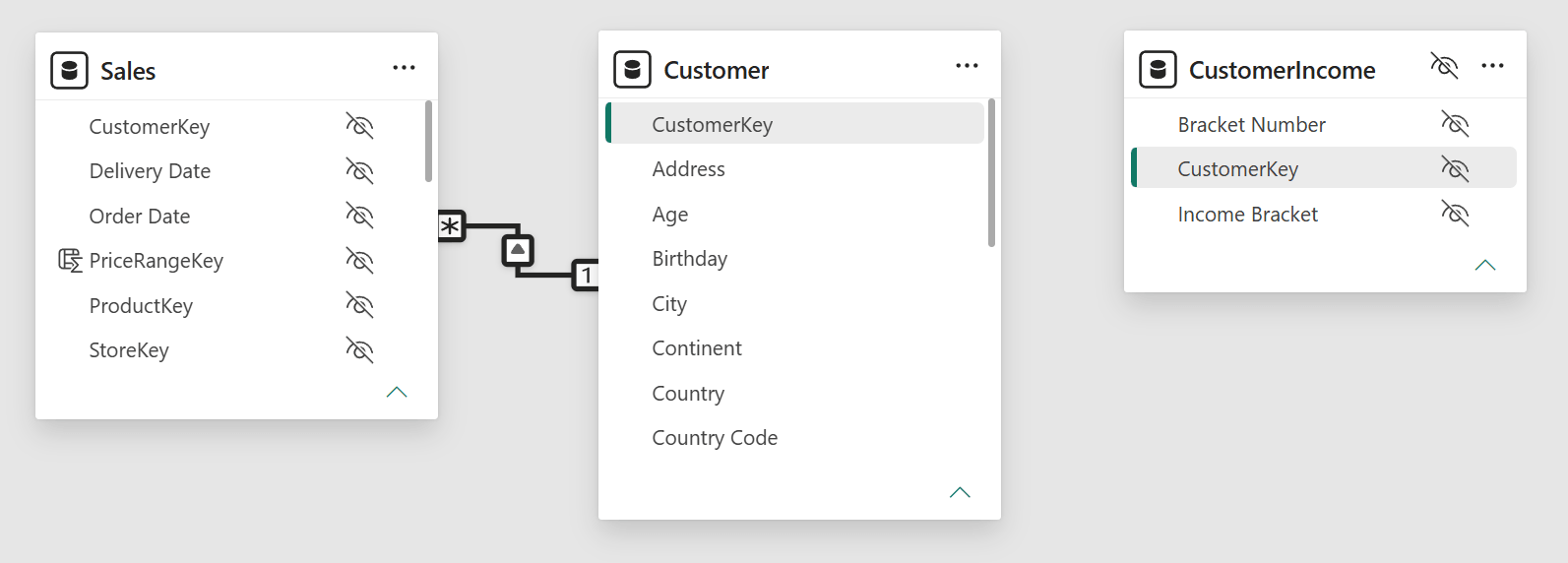
RLS on CustomerIncome is defined for the "No Income Bracket" role, with a filter that returns FALSE for every row in the table. That makes the entire CustomerIncome table invisible to members of that role; an admin role with no filter sees all rows.
As the diagram view shows, there is no relationship between Customer and CustomerIncome. Quite surprisingly, if we created a relationship from CustomerIncome to Customer, the RLS filter that returns FALSE on CustomerIncome would propagate through the relationship to Customer and then to Sales. Restricted users would then see no customers and no sales at all: the report would become empty rather than partially redacted. The design relies on the filter remaining confined to the LOOKUPVALUE expression inside the calculated column. Keeping the two tables disconnected is what makes that possible, and for the same reason, we must avoid any relationship that could let the CustomerIncome filter reach the rest of the model.
We then copy the sensitive columns into Customer using two calculated columns, where we set the Expression Context to User Context:
Income Bracket =
LOOKUPVALUE (
    CustomerIncome[Income Bracket],
    CustomerIncome[CustomerKey], Customer[CustomerKey]
)
Income Bracket Number =
LOOKUPVALUE (
    CustomerIncome[Bracket Number],
    CustomerIncome[CustomerKey], Customer[CustomerKey]
)
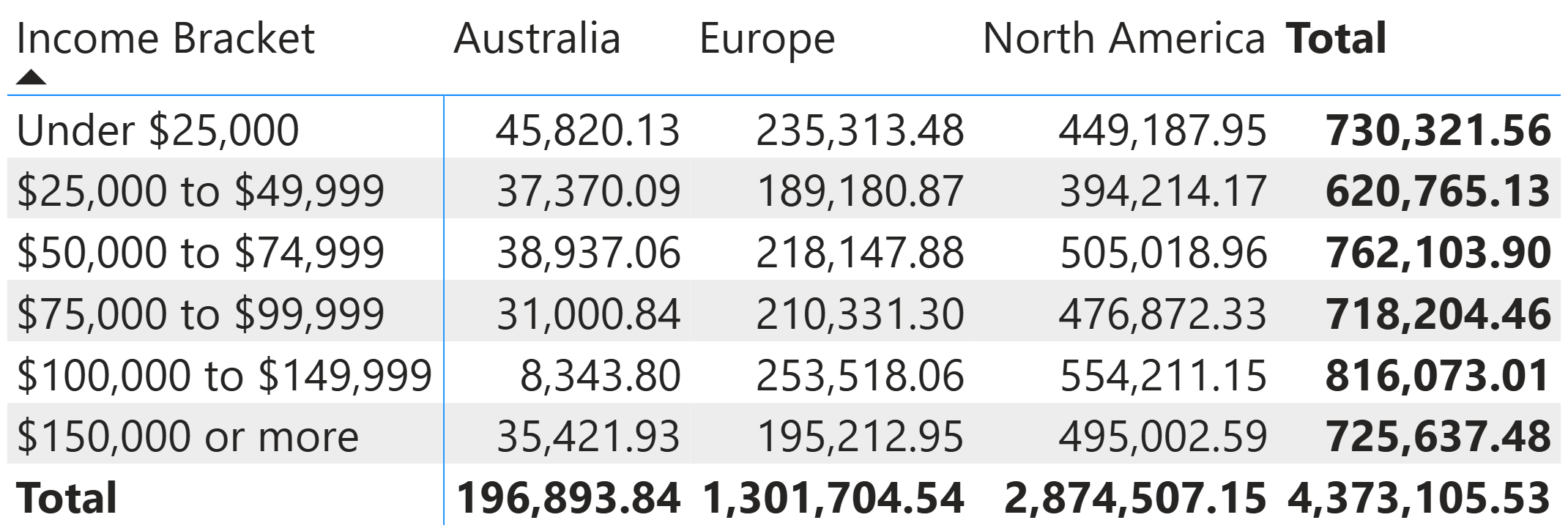
The key behavior is that LOOKUPVALUE returns BLANK whenever the matching row in CustomerIncome is filtered out by the active security role. Users in "No Income Bracket" therefore see a blank value in Customer[Income Bracket] for every customer, while admins see the real bracket. This is the matrix with Sales Amount by Income Bracket and Continent visible to admin users, who see every bracket and every region populated correctly.
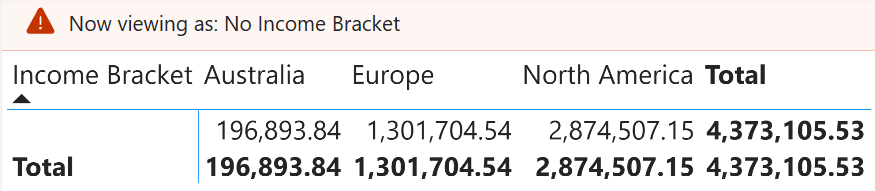
Users in the "No Income Bracket" role do not see any names in the Income Bracket column. Note below the Now viewing as: No Income Bracket banner at the top: the column still exists, the report still runs, but Income Bracket collapses to a single blank row. All the other Customer columns (Address, Age, City, Country, and so on) remain fully accessible because no filter is propagated onto Customer.
It is important to note that the cost of LOOKUPVALUE is paid for each row of the Customer table where the column is evaluated, at every query. For a small Customer table, this is negligible; for a large one, it can become noticeable. Be mindful of this when applying the pattern to high-cardinality tables.
Materialization of calculated columns
A Standard calculated column in Import mode is materialized: the engine evaluates the expression for each row during model processing and stores the result in the column, exactly like any other imported column. From the storage engine point of view, there is no difference between a materialized calculated column and an imported column. Both are queried at the storage engine level with the same speed and behavior – except for a potentially lower compression rate for the calculated column.
A user-aware calculated column is not materialized. The column does not occupy memory and does not exist in the storage engine. When a query references the column, the storage engine evaluates the expression at query time.
It is important to note that materialization is not a property that we can control directly. Materialization is the consequence of the combination of two factors: the Expression Context property and the storage mode of the table. In Import mode, a Standard column is materialized, and a User Context column is not. In DirectQuery mode, calculated columns have always been unmaterialized: the engine translates the expression into a SQL query and computes the values at query time. With DirectQuery, the User Context property does not change the materialization, since the column was already unmaterialized.
The following table shows the combinations of table storage mode and supported Expression Context settings.
| Storage mode | Standard (default) | User Context |
| Import | Materialized | Unmaterialized |
| Direct Lake on OneLake | Unmaterialized | Unmaterialized |
| Direct Lake on SQL | N/A | N/A |
| DirectQuery | Unmaterialized | Unmaterialized |
| Dual | Materialized (Import), unmaterialized (DirectQuery) | Unmaterialized |
| DirectQuery on Power BI semantic models | Unmaterialized | N/A |
Reading the table is straightforward once we accept that materialization is derived rather than chosen: we pick Standard or User Context, we pick the storage mode of the table, and the engine determines whether the column is materialized in memory. Direct Lake on OneLake is the storage mode where the calculated column is always unmaterialized, regardless of the Expression Context property. Import is the only storage mode in which a calculated column is materialized; the User Context option also makes the column unmaterialized in Import mode.
User-aware expressions and calculated columns
A user-aware DAX expression is one that depends on the user running the query, affecting which DAX functions can be used and the security perimeter for accessing data.
The set of user-aware DAX functions includes USERCULTURE, USERPRINCIPALNAME, USEROBJECTID, USERNAME, and CUSTOMDATA. An expression is user-aware when it calls one of these functions directly, or when it references another expression that does so indirectly, like a measure or a calculated column that internally uses USERPRINCIPALNAME.
These functions return values that are known only when a user runs a query. Therefore, they cannot be used in a Standard calculated column because there is no user at process time. The engine raises an error when a Standard calculated column attempts to use a user-aware function. Be mindful that User Context is what allows the column to use these functions. We explicitly choose User Context as the Expression Context, and only then can the expression invoke the functions listed above.
A user-aware calculated column has access only to the rows visible to the user through the corresponding security roles. If a DAX expression aggregates rows from a table or attempts to access other rows or tables in the model, the access is limited to the security perimeter defined by the active security roles for the current user. This is an important difference in the semantics of a calculated column: for example, certain classification techniques (e.g. best products) may require the use of Standard calculated columns that are not user-aware; implementing Non Visual Totals in a semantic model requires calculated tables that access the entire model regardless of the security roles – although, at the time of writing, we do not have an Expression Context property for calculated tables.
It is important to note that user-aware columns can also contain expressions that do not use any user-aware functions and do not access any other rows of the model, whether in the same table or in other tables. In that case, the column is just a virtual calculated column.
Limitations of user-aware calculated columns
User-aware calculated columns have four important limitations:
- They cannot be used in relationships. A relationship in Import mode creates a model-level structure that cannot depend on the user.
- They cannot be referenced (directly or indirectly) in standard calculated columns. Because a Standard calculated column must not depend on the user context, any direct or indirect dependency is not allowed. The model prevents us from creating such conditions, and will raise an error if we try to save a model that violates this.
- They cannot be referenced (directly or indirectly) in calculated tables. A calculated table cannot be user-aware. Therefore, like standard calculated columns, calculated tables must not depend on the user context, directly or indirectly. The model raises an error if we try to save a model that violates that.
- They cannot be referenced (directly or indirectly) in row-level security (RLS). The row-level security expressions must be evaluated to determine which rows are visible in the user-aware space. Therefore, they cannot depend on user-aware columns. In this case as well, the model raises an error if we try to save a model that violates this condition.
The relationship limitation warrants a more detailed explanation because it affects certain modeling techniques. A relationship is a structural property of the model in Import mode that is defined during processing. The engine relies on relationships to optimize queries and to propagate filters between tables. To do so efficiently, the engine builds internal data structures that require for the column to be materialized. A user-aware column does not exist in storage, so there is no column for the relationship to use.
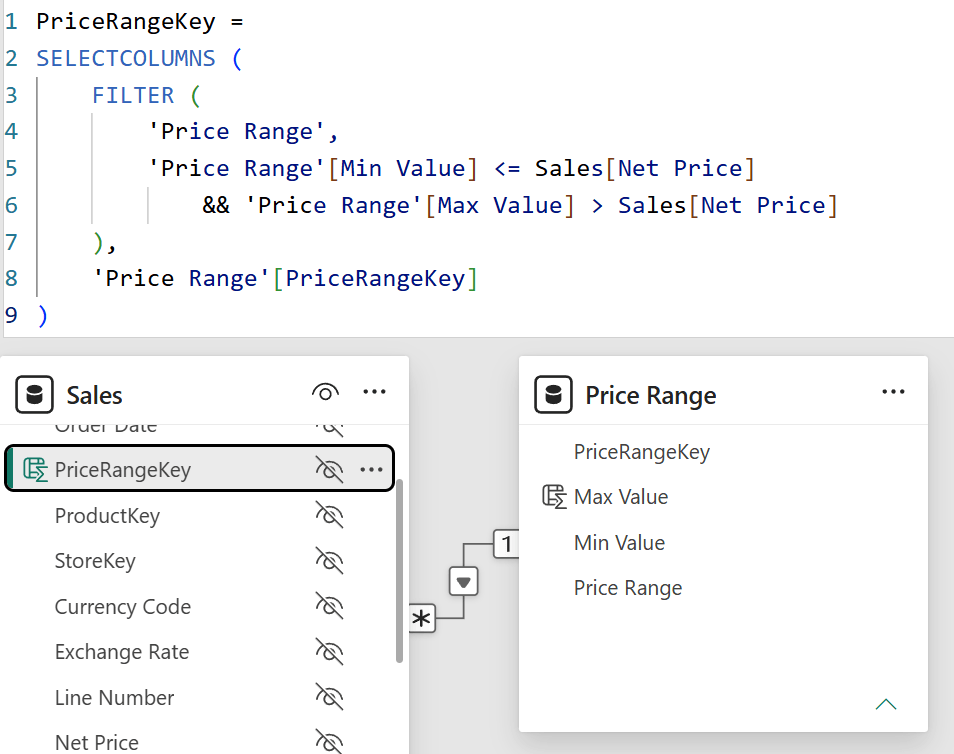
This limitation has a significant practical consequence. User-aware columns cannot be used to build calculated relationships: relationships built on columns that are themselves the result of a calculation. Common examples include a column that combines two existing columns to form a composite key (see COMBINEVALUES) or a column that retrieves a price range based on a value in the table (as in Static segmentation, shown in the following picture). These columns must remain Standard calculated columns and pay the cost of materialization, because they exist for the sole purpose of feeding a relationship.
Conclusions
Recapping, user-aware calculated columns introduce a new dimension to a feature (calculated columns) that has existed since the very first version of DAX. The Expression Context property determines whether a column is evaluated in the model context or the user context; only in the latter case can the expression use user-aware DAX functions.
The most evident use case is localization, but the implications are broader. Virtual calculated columns occupy a useful middle ground between columns imported from the source and measures defined in the model: they expose a column to the user interface without paying the cost of additional storage, while keeping the calculation centralized in a single place. Custom security and personalization scenarios can also be implemented with this new feature.
There are limitations to be aware of. User-aware columns trade structural participation in the model (relationships, calculated tables, RLS, and dependencies from standard calculated columns) for the flexibility of being evaluated at query time; the cost can become noticeable for high-cardinality tables.
The rule is simple: use user-aware columns when a column depends on the user, or when the expression is simple enough that the storage engine can evaluate it at query time at minimal cost. Use standard calculated columns when materialization is needed for relationships, when the expression is complex, or when query performance is critical. As is often the case, understanding when each option applies is what makes the difference between a model that scales well and one that does not.

Returns the culture code for the user, based on their operating system or browser settings.
USERCULTURE ( )
Returns a related value from another table.
RELATED ( <ColumnName> )
Returns the related tables filtered so that it only includes the related rows.
RELATEDTABLE ( <Table> )
Converts a value to text in the specified number format.
FORMAT ( <Value>, <Format> [, <LocaleName>] )
Checks whether a condition is met, and returns one value if TRUE, and another value if FALSE.
IF ( <LogicalTest>, <ResultIfTrue> [, <ResultIfFalse>] )
Retrieves a value from a table.
LOOKUPVALUE ( <Result_ColumnName>, <Search_ColumnName>, <Search_Value> [, <Search_ColumnName>, <Search_Value> [, … ] ] [, <Alternate_Result>] )
Returns a blank.
BLANK ( )
Returns the user principal name.
USERPRINCIPALNAME ( )
Returns the current user's Object ID from Azure AD for Azure Analysis Server and the current user's SID for on-premise Analysis Server.
USEROBJECTID ( )
Returns the domain name and user name of the current connection with the format of domain-name\user-name.
USERNAME ( )
Returns the value of the CustomData connection string property if defined; otherwise, BLANK().
CUSTOMDATA ( )
Combines the given set of operands using a specified delimiter.
COMBINEVALUES ( <Delimiter>, <Expression1>, <Expression2> [, <Expression2> [, … ] ] )