 Marco Russo & Alberto Ferrari
Searching text in a Power BI report usually means looking for a string inside the values of a column. For example, the filter pane translates a "contains" condition into a DAX expression based on CONTAINSSTRING or SEARCH, which look for a sequence of characters anywhere in the text; for example, a search for "phone" also returns "headphones" and "microphone".
With a full-text index, search functions operate on words rather than characters. The text data is divided into words, also called tokens, and a following text-normalization technique called stemming reduces words to their root form. For example, “running” and “runs” both stem to “run”, whereas “runner” remains a different word. This way, a search for "phone" can return "phones", but not "headphones", because it has a different meaning. Also, full-text search can tolerate typos and rank results by relevance, which CONTAINSSTRING cannot do.
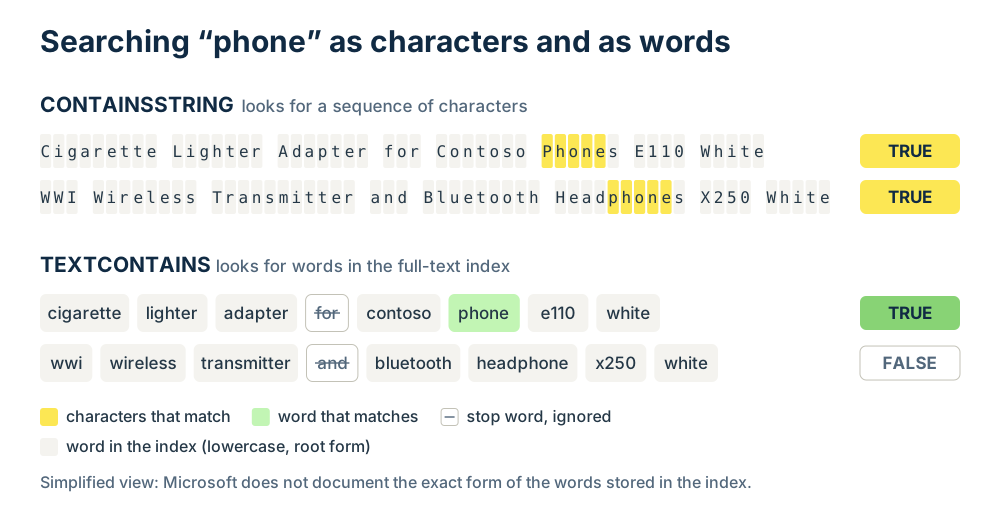
Power BI semantic models can build a full-text index on string columns; the feature was introduced in preview in September 2026. Two DAX functions use the index: TEXTCONTAINS checks whether any text matches the search, and TEXTSIMILARITY returns a relevance score.
In this article, we describe how to enable the index, how the two functions work, and how to use them in a report. If you need to improve the performance of CONTAINSSTRING and SEARCH without a full-text index, read Optimizing text search in DAX.
Enabling the full-text index on a column
The full-text index is controlled by a column property named fullTextIndexingBehavior. The property requires a model with compatibility level 1708 or higher. It applies only to string columns of tables in Import, Dual, or Direct Lake storage modes. The Microsoft documentation describes all the details. Here, we focus on the steps required to run the examples in this article.
The property has three possible values:
- Full: the engine builds the index every time the table is processed. This is the choice we use in this article.
- Explicit: the engine builds the index only when an indexes refresh is explicitly triggered through the XMLA endpoint.
- Off: the engine does not build the index. Any query that uses TEXTCONTAINS or TEXTSIMILARITY on the column returns an error.
The index increases memory usage and the time it takes to refresh the semantic model. Therefore, you should enable this option only for columns where full-text search can be helpful, such as a product description or the text of a support ticket.
NOTE: the “Full Text Indexing Behavior” property shows the same settings as “String Indexing Behavior”, which also includes an “Auto” value for a lazy index executed on the first request. However, the “Auto” value is not supported for “Full Text Indexing Behavior”.
Using the TMDL view
The documentation describes the configuration in the TMDL view of Power BI. These are the steps:
- Open the semantic model in the Power BI service and select TMDL view.
- Drag the table that contains the column onto the TMDL canvas, so that the TMDL view generates a script with its definition.
- Add the fullTextIndexingBehavior property to the column.
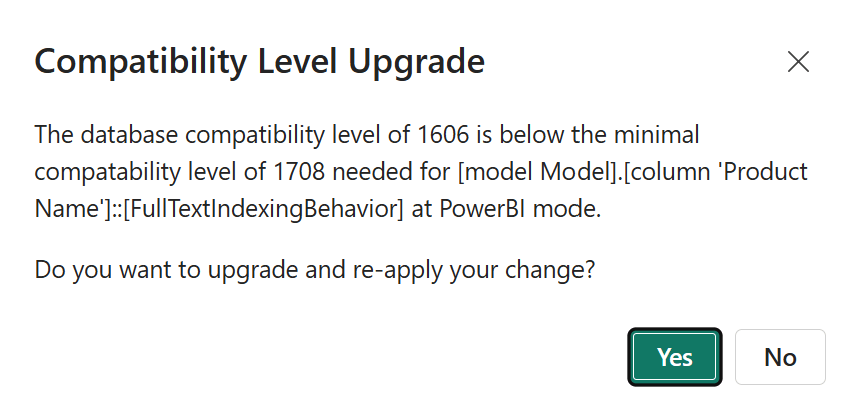
- Apply the change in Edit mode. Because the property requires compatibility level 1708, the TMDL view asks to upgrade the model.
- Refresh the semantic model to build the index.
The following excerpt shows only the relevant lines of the Product Name column after the change:
table Product
    column 'Product Name'
        dataType: string
        fullTextIndexingBehavior: full
It is important to add the property to the script generated by the TMDL view, rather than writing a new script with only these lines. The script starts with createOrReplace, which replaces the entire table. Indeed, a column or a property missing in the script would be removed from the model:
createOrReplace

    ref table Product

        column 'Product Name'
            dataType: string
            fullTextIndexingBehavior: full
            summarizeBy: none
            sourceColumn: Product Name

            annotation SummarizationSetBy = Automatic
            annotation PBI_FormatHint = {"isText":true}
Using Tabular Editor
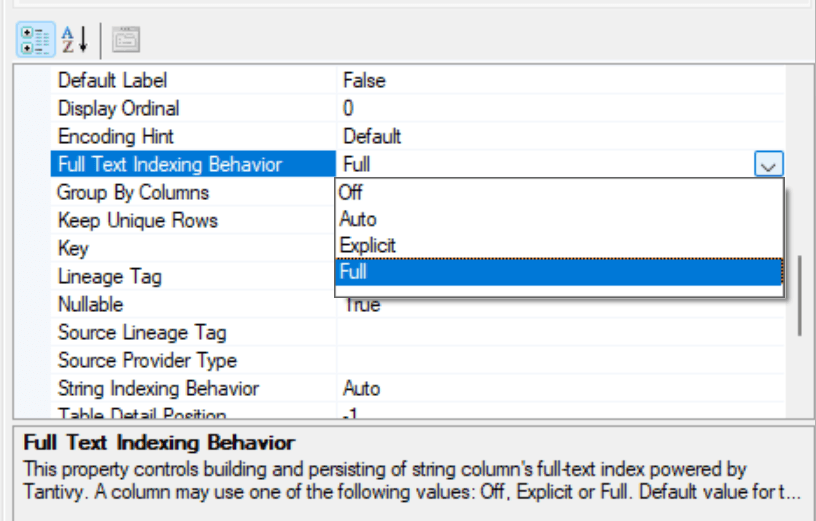
Tabular Editor can set the same property through the XMLA endpoint, and Tabular Editor 2 (the free version of Tabular Editor) supports it starting from version 2.29.0. After connecting to the semantic model, we set the compatibility level of the model to 1708. Then, we set the FullTextIndexingBehavior property of the column to Full. Saving the changes updates the model in the Power BI service, and a refresh of the table builds the index.
The Power BI user interface does not show whether the index exists. The simplest check is a query that uses TEXTCONTAINS on the column. The query returns an error if there is no index:
Full-text index is not available. Set the column's 'fullTextIndexingBehavior' property to 'Full' and process the model to build the index.
Searching words with TEXTCONTAINS
TEXTCONTAINS returns TRUE when the text in a column matches the search text, and FALSE otherwise. The first argument must be a column with a full-text index, and the second argument is the text to search. The optional, third argument defines the match mode, which we describe later in this section:
TEXTCONTAINS ( <WithinTextColumn>, <SearchText> [, <MatchMode>] )
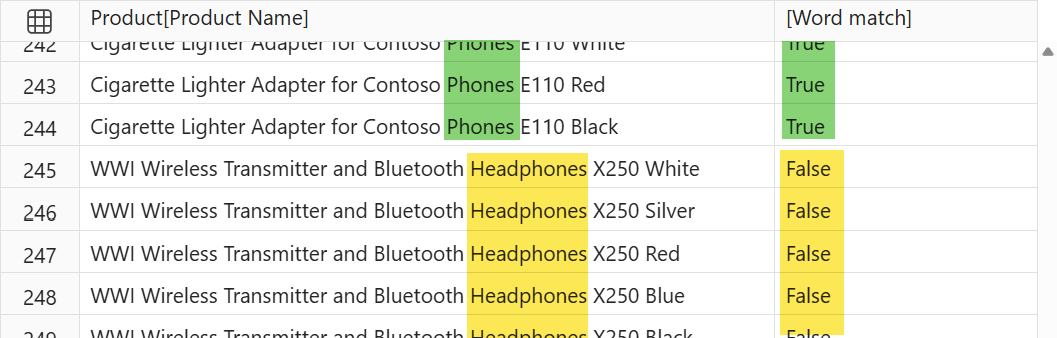
The simplest way to see the difference from CONTAINSSTRING is to use both functions on the same column. The following query returns the product names that contain the string "phone". It also adds a column with the result of TEXTCONTAINS for the same search:
EVALUATE
ADDCOLUMNS (
    FILTER (
        VALUES ( 'Product'[Product Name] ),
        CONTAINSSTRING ( 'Product'[Product Name], "phone" )
    ),
    "Word match", TEXTCONTAINS ( 'Product'[Product Name], "phone" )
)
ORDER BY
    [Word match] DESC,
    'Product'[Product Name] DESC
CONTAINSSTRING returns all the names that include the characters "phone", like the names of headphones. TEXTCONTAINS returns TRUE only for the names that contain the word "phone", or another form of the same word, that points to the same actual meaning, like "phones".
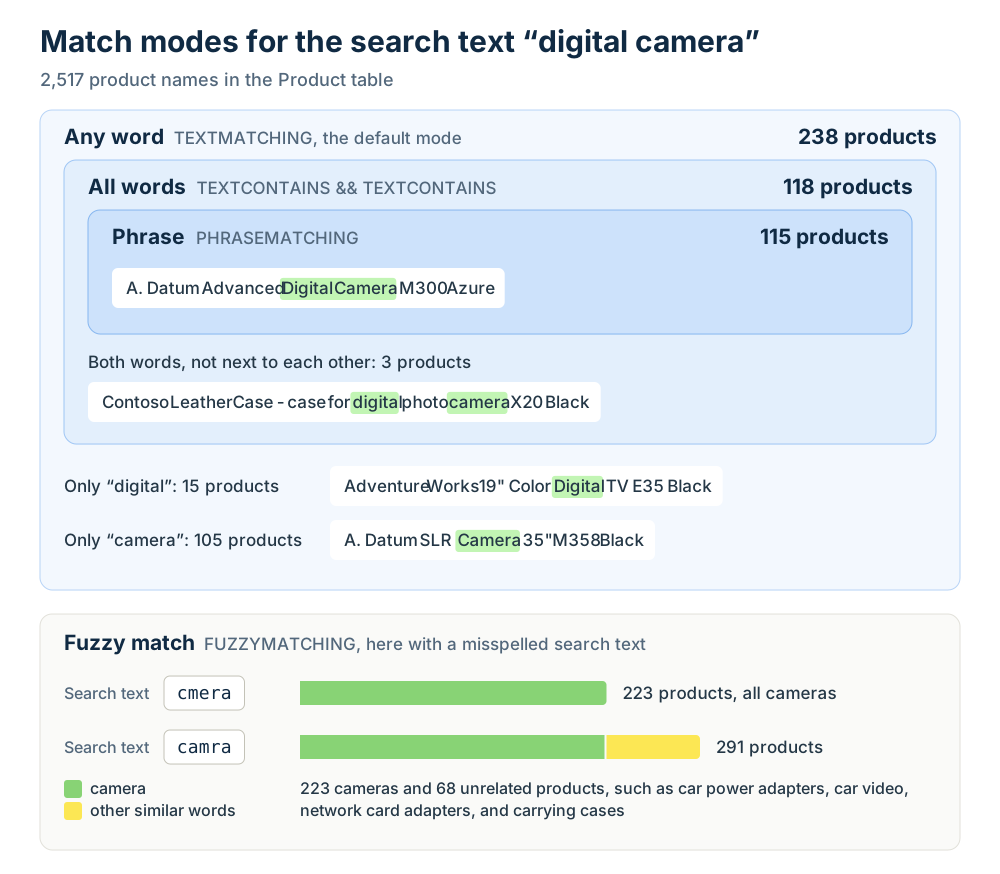
The default match mode is TEXTMATCHING. TEXTMATCHING splits the search text into words, and it returns TRUE when the text contains at least one of them. This might not be what users expect: a search for "digital camera" also returns names that contain only "digital" or only "camera".
The PHRASEMATCHING mode returns TRUE only when the words are next to each other, in the same order as in the search text. When all the words must be present in any order, the solution is to combine several TEXTCONTAINS calls with the && operator. The following query compares the number of products found with each technique:
EVALUATE
ROW (
    "Any word",
        COUNTROWS (
            FILTER ( 'Product', TEXTCONTAINS ( 'Product'[Product Name], "digital camera" ) )
        ),
    "All words",
        COUNTROWS (
            FILTER (
                'Product',
                TEXTCONTAINS ( 'Product'[Product Name], "digital" )
                    && TEXTCONTAINS ( 'Product'[Product Name], "camera" )
            )
        ),
    "Phrase",
        COUNTROWS (
            FILTER (
                'Product',
                TEXTCONTAINS ( 'Product'[Product Name], "digital camera", PHRASEMATCHING )
            )
        )
)
The number of products decreases from the first column to the last. For example, “Contoso Leather Case - case for digital photo camera X20 Black” includes both words, but not the phrase "digital camera". The three leather cases for digital photo cameras are the only difference between the second and the third column.
| Any word | All words | Phrase |
| 238 | 118 | 115 |
The FUZZYMATCHING mode tolerates small differences between the words of the text and the words of the search, such as typos. For example, the following query finds the cameras even though the search text is misspelled:
EVALUATE
FILTER (
    VALUES ( 'Product'[Product Name] ),
    TEXTCONTAINS ( 'Product'[Product Name], "camra", FUZZYMATCHING )
)
Fuzzy matching is useful when the search text comes from a user. However, it can also return words similar to the search text that are not related. Therefore, it is a good idea to test it with real user searches. For example, searching for “cmera” returns only the 223 camera products. Instead, “camra”, which we used in the sample query, returns 291 products: besides the cameras, the result includes 68 unrelated products, such as car power adapters, car video systems, network card adapters, and carrying cases.
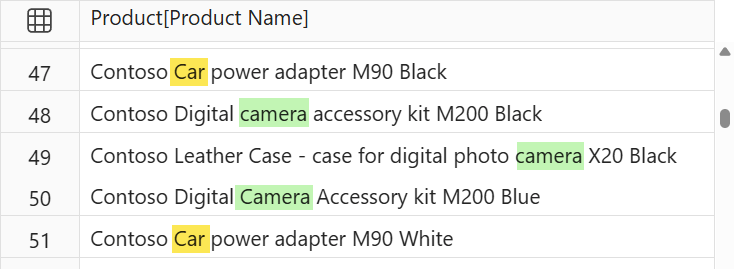
The search is not case-sensitive, but it is accent-sensitive: for example, “café” does not match “cafe”. Text normalization also depends on the semantic model language property, which cannot be set at the column level. For example, with an English model, a search for "run" also matches "running", whereas common words like "the" and "of" are ignored. These common words are called stop words. A search text made only of stop words does not return FALSE: the query fails with the following error. For example, this happens with “the” or “of the”, both in TEXTCONTAINS and in TEXTSIMILARITY. This is important when the search text comes from a user input.
Full-text query failed for column '' of table '': no tokens after analysis
If the model language is English and you have a column with product names in Italian, the engine applies English rules to Italian words, thereby lowering the quality of full-text search results.
Stop words also affect PHRASEMATCHING. A phrase that includes a stop word does not match the text, even when the text contains exactly the same words. For example, six product names contain “Adapter for Contoso”, but a PHRASEMATCHING search for “adapter for contoso” does not return any of them. We obtained the same result with “games for kids” and “transmitter and bluetooth”, whereas phrases without stop words, like “hand games”, return all the products that contain them. Removing the stop word from the search text does not help either: “adapter contoso” does not match those names. In that case, the only option is to combine several TEXTCONTAINS calls with the && operator, as we have seen for “digital” and “camera”.
Ranking results with TEXTSIMILARITY
TEXTSIMILARITY has the same arguments as TEXTCONTAINS, including the match mode. However, instead of TRUE or FALSE, it returns a relevance score. So a higher value means a better match, and zero means the text does not match the search:
TEXTSIMILARITY ( <WithinTextColumn>, <SearchText> [, <MatchMode>] )
The following query computes the score of each product name for the search text "red refrigerator". It returns only the names with a score greater than zero, sorted by score:
DEFINE
    VAR SearchText = "red refrigerator"

EVALUATE
FILTER (
    ADDCOLUMNS (
        VALUES ( 'Product'[Product Name] ),
        "Score", TEXTSIMILARITY ( 'Product'[Product Name], SearchText )
    ),
    [Score] > 0
)
ORDER BY [Score] DESC
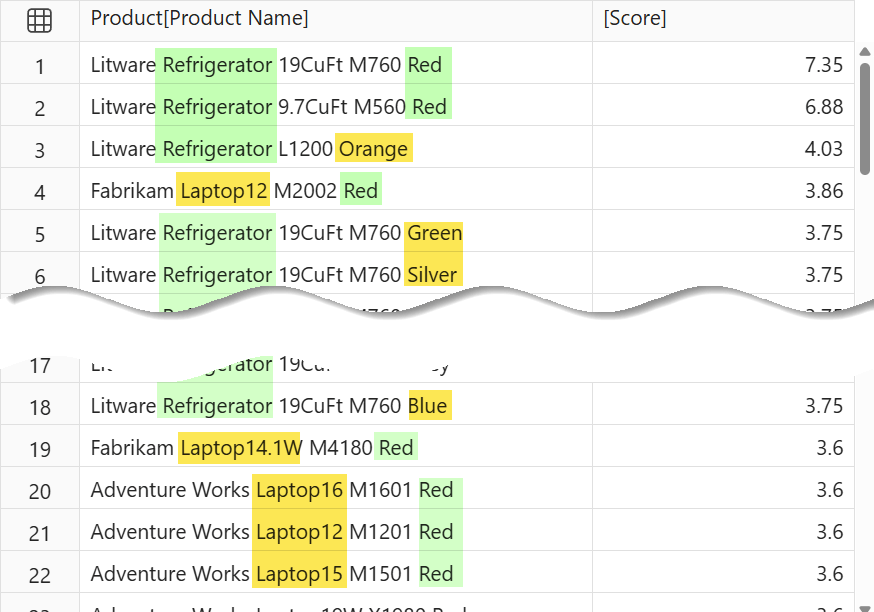
Because the default match mode is TEXTMATCHING, the result includes every product that contains red or refrigerator. The red refrigerators appear at the top of the list, followed by other refrigerators and then other red products.
A common requirement is to make one word mandatory and to use the other words only to sort the results. In that case, TEXTCONTAINS filters the rows, and TEXTSIMILARITY ranks them, as in the following query:
DEFINE
    VAR SearchText = "red refrigerator"

EVALUATE
ADDCOLUMNS (
    FILTER (
        VALUES ( 'Product'[Product Name] ),
        TEXTCONTAINS ( 'Product'[Product Name], "refrigerator" )
    ),
    "Score", TEXTSIMILARITY ( 'Product'[Product Name], SearchText )
)
ORDER BY [Score] DESC
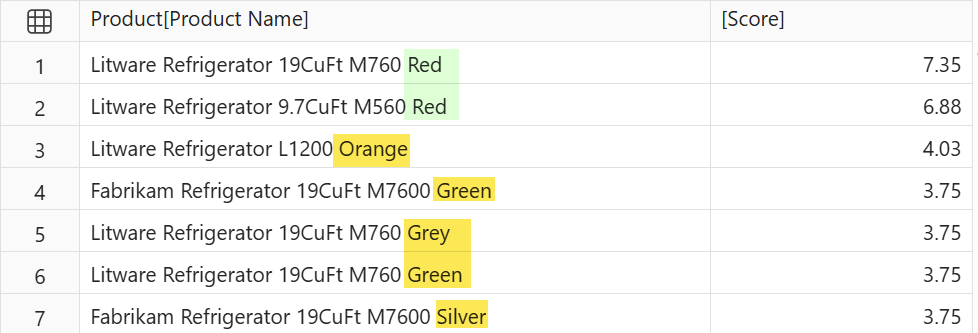
The result contains only refrigerators, with the red ones at the top. The result of TEXTSIMILARITY does not depend on the rows filtered: in other words, each refrigerator gets the same score as in the previous query, even though we reduced the number of product names returned.
Reading the similarity score
The score returned by TEXTSIMILARITY is a value that does not mean much by itself. A score of 3 is not good or bad in itself. It only says that the row is more relevant than a row with a score of 2 in the same search. The documentation is explicit: scores are not comparable across different search strings or different columns.
The reason is the algorithm: TEXTSIMILARITY returns a score based on a ranking algorithm that assigns a weight to each word of the search text. Words that appear in fewer texts get a higher weight because they are more selective. Also, a word repeated in the same text adds less to the score each time. Moreover, a text with fewer words gets a higher score than a text with more words that matches the same search words. The number of characters does not matter, and stop words are not counted. Microsoft does not document the algorithm, but the scores we obtained are consistent with the BM25 formula with its most common parameters.
The weight of each word depends on the content of the entire column. As a consequence, the same product name can get a different score after a refresh that adds new products. For this reason, comparing scores computed at different times also does not make sense.
What matters is the distance between the rows of the same result. The following query groups the products found by the search stored in ProductScores according to the words they contain (“red” and “refrigerator”):
DEFINE
    VAR SearchText = "red refrigerator"
    VAR ProductScores =
        ADDCOLUMNS (
            VALUES ( 'Product'[Product Name] ),
            "Score", TEXTSIMILARITY ( 'Product'[Product Name], SearchText ),
            "Contains red", TEXTCONTAINS ( 'Product'[Product Name], "red" ),
            "Contains refrigerator", TEXTCONTAINS ( 'Product'[Product Name], "refrigerator" )
        )

EVALUATE
GROUPBY (
    FILTER ( ProductScores, [Score] > 0 ),
    [Contains red],
    [Contains refrigerator],
    "Products", SUMX ( CURRENTGROUP (), 1 ),
    "Min Score", MINX ( CURRENTGROUP (), [Score] ),
    "Max Score", MAXX ( CURRENTGROUP (), [Score] )
)
ORDER BY [Max Score] DESC
For each group, it shows the number of products and the score range.
| Contains red | Contains refrigerator | Products | Min Score | Max Score |
| true | true | 2 | 6.88 | 7.35 |
| false | true | 84 | 3.51 | 4.03 |
| true | false | 97 | 2.82 | 3.86 |
The products with both words have the highest scores. With the same number of words, a product that contains only “refrigerator” scores higher than a product that contains only “red”, because “red” appears in more product names (99 instead of 86) and is less selective. However, the groups overlap, because the score also depends on the number of words in the product name. For example, “Fabrikam Laptop12 M2002 Red” has four words and a score of 3.86, which is higher than the 3.75 of “Litware Refrigerator 19CuFt M760 Green”, which has five words. Overall, 10 products that contain only “red” rank above 69 of the 84 products that contain only “refrigerator”.
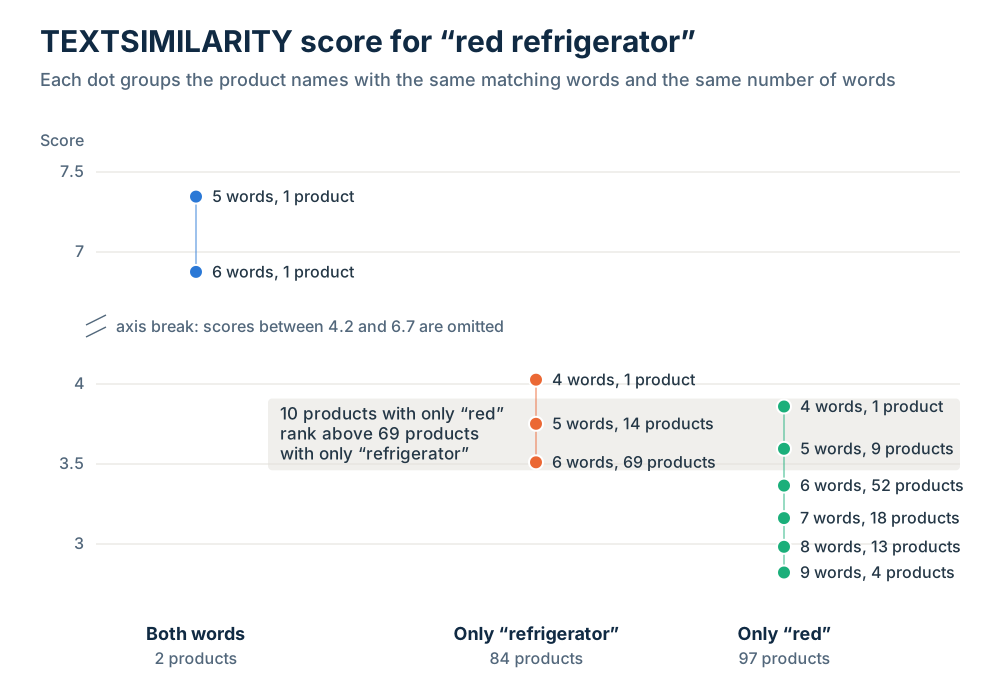
Therefore, we do not recommend showing the raw score to the users. The position in the ranking is easier to read, and so is a relative score. A relative score is the score of each row divided by the highest score for the same search:
DEFINE
    VAR SearchText = "red refrigerator"
    VAR ProductScores =
        ADDCOLUMNS (
            VALUES ( 'Product'[Product Name] ),
            "Score", TEXTSIMILARITY ( 'Product'[Product Name], SearchText )
        )
    VAR TopScore =
        MAXX ( ProductScores, [Score] )

EVALUATE
ADDCOLUMNS (
    FILTER ( ProductScores, [Score] > 0 ),
    "Relative Score", DIVIDE ( [Score], TopScore )
)
ORDER BY [Score] DESC
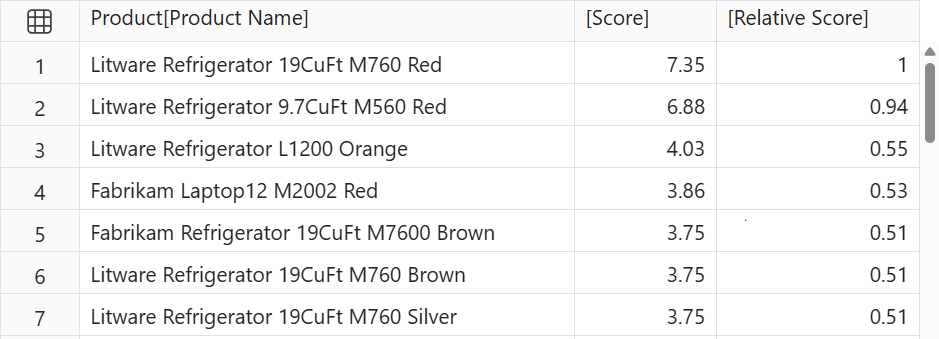
The relative score is 1 (100%) for the best match, and it shows how far each row is from the best match. Like the original score, it only makes sense within one same search.
Using full-text search in Power BI reports
At the time of writing, no Power BI visual uses the full-text index. For example, the filter pane still translates a "contains" condition into CONTAINSSTRING or SEARCH, so it keeps searching characters instead of words. Therefore, TEXTCONTAINS and TEXTSIMILARITY are mainly useful in DAX code written by a developer.
The first scenario is a custom application that runs DAX queries. For example, a Power BI Embedded application can receive the search text from the user and run a query with TEXTSIMILARITY. The query returns the keys of the best matches, which the application applies as a filter to the embedded report.
Calculated columns and calculated tables are not a good fit for a dynamic search. As we describe in the “Current limitations of the preview” section, they can only use a literal search text. For example, they cannot match the product names with a list of keywords stored on another table.
The second scenario is a report that uses a measure. A measure can evaluate TEXTSIMILARITY for each product in a visual and work as a visual-level filter. The search text can come from a disconnected table with a list of searches, selected through a slicer.
We see here the definitions of the table and measure used:
Search Terms =
DATATABLE (
    "Search Text", STRING,
    {
        { "red refrigerator" },
        { "digital camera" },
        { "home theater" }
    }
)
Search Score =
VAR SearchText =
    SELECTEDVALUE ( 'Search Terms'[Search Text] )
RETURN
    IF (
        NOT ISBLANK ( SearchText ),
        MAXX (
            VALUES ( 'Product'[Product Name] ),
            TEXTSIMILARITY ( 'Product'[Product Name], SearchText )
        )
    )
In a table visual showing the product name, the Search Score measure returns the score of each product. A visual-level filter keeps only the products where Search Score is greater than zero, which removes the products that do not match the search. We can show the best matches first by sorting the visual by Search Score.
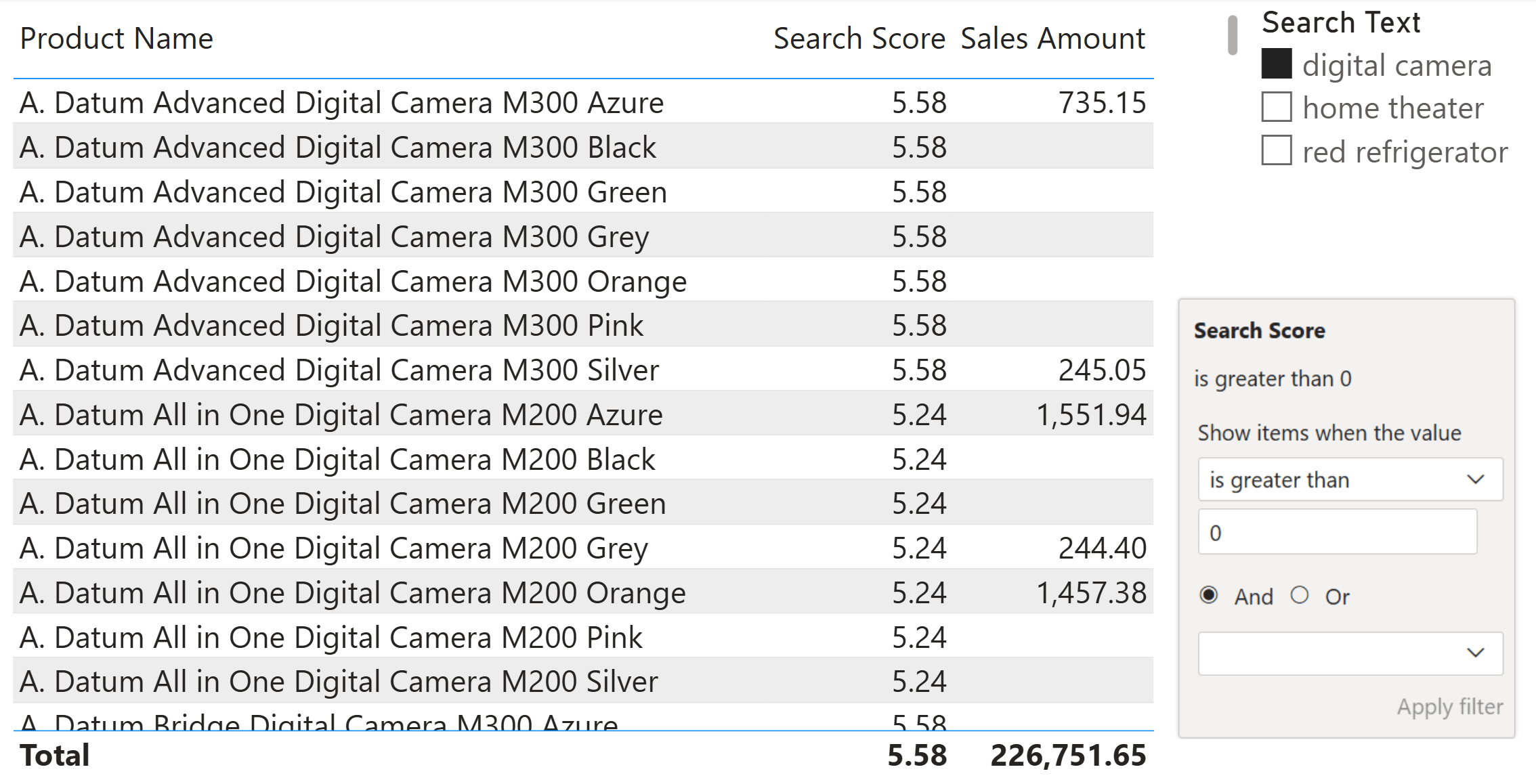
There are two limitations to using this technique. First, the filter works only at the visual level, because Power BI does not accept measures in page-level or report-level filters. Second, users can choose only one search from the slicer, which shows the values in the disconnected table.
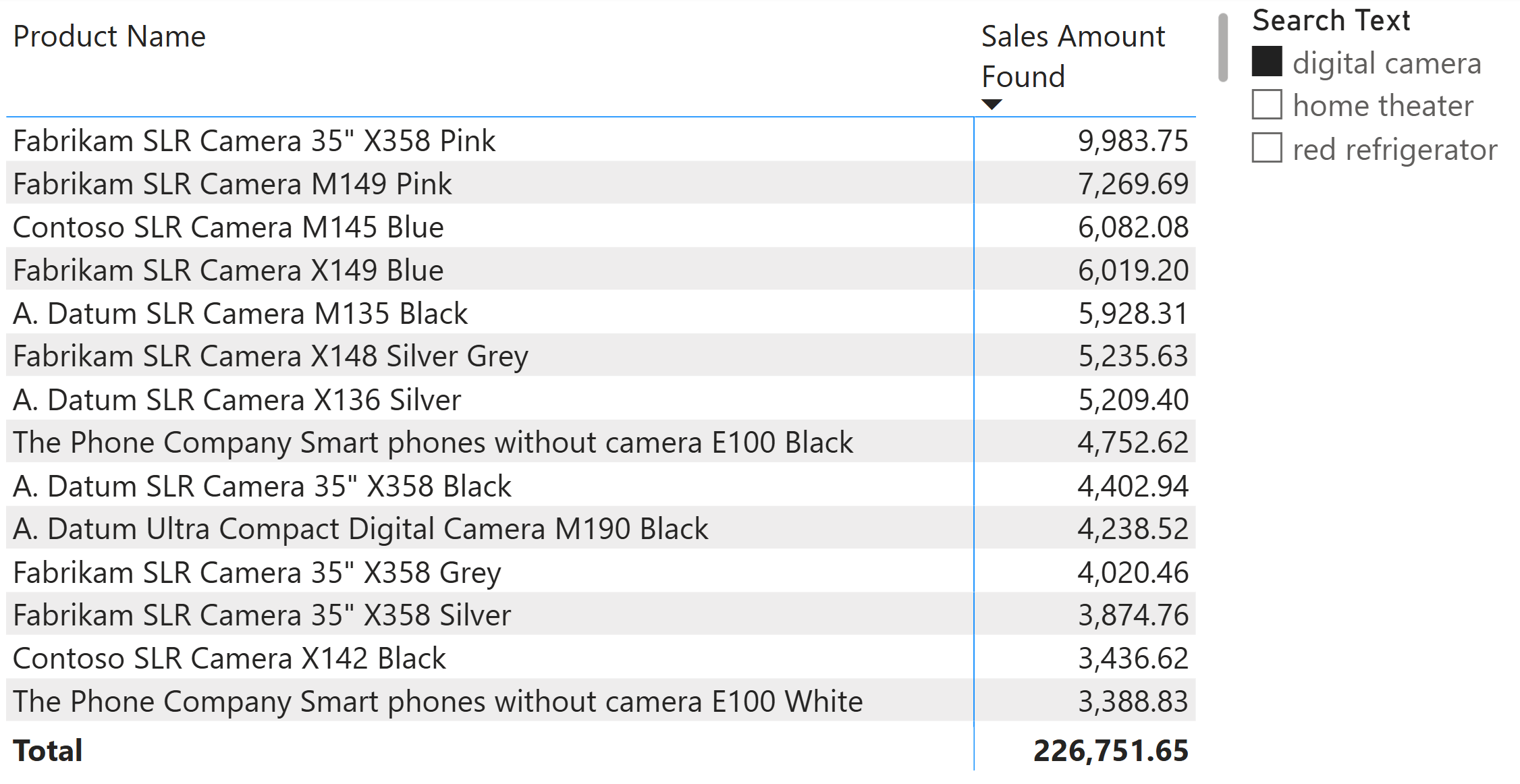
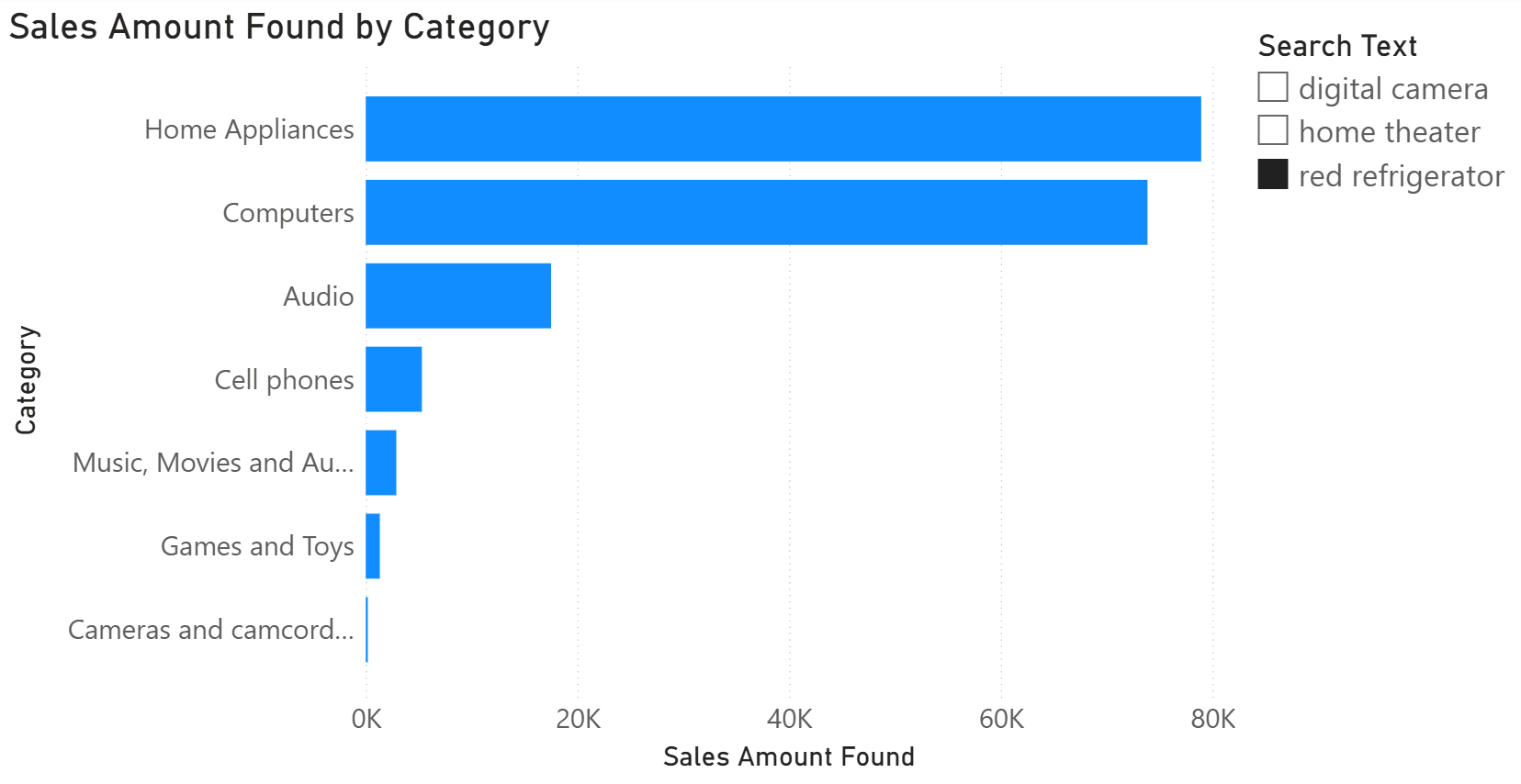
We can use a different approach by moving the search inside a measure instead of using a visual filter. For example, the following measure computes Sales Amount only for the products filtered by the Search Text selection:
Sales Amount Found =
VAR SearchText =
    SELECTEDVALUE ( 'Search Terms'[Search Text] )
RETURN
    IF (
        ISBLANK ( SearchText ),
        [Sales Amount],
        CALCULATE (
            [Sales Amount],
            FILTER (
                VALUES ( 'Product'[Product Name] ),
                TEXTCONTAINS ( 'Product'[Product Name], SearchText )
            )
        )
    )
Any visual that uses it responds to the search, including a chart by category. If the slicer has no selection, the measure returns the Sales Amount of all products. However, this approach also limits users to one selection from the disconnected table.
Current limitations of the preview
Full-text indexing is in preview with several limitations. These are the most relevant at the time of writing:
- The feature is documented for Power BI semantic models, not for SQL Server Analysis Services nor Azure Analysis Services.
- The configuration requires the TMDL view of the Power BI service or a tool like Tabular Editor connected through the XMLA endpoint, because there is no graphical property editor.
- The index refresh required by the explicit behavior is available only through the XMLA endpoint, not in the refresh of the Power BI service or in the REST API.
- The index supports only string columns in tables with Import, Dual, or Direct Lake storage modes. DirectQuery tables are not supported.
- Only 18 languages have stemming and stop-word removal, including English, French, German, Italian, and Spanish.
- TEXTCONTAINS and TEXTSIMILARITY are evaluated row by row. Before using them in a calculated column in a large table, you should test the performance.
- There is no user interface that confirms whether the index exists.
- During the preview, the capacity units (CU) consumed to build the index are not fully tracked, so the reported consumption might increase at general availability.
- With Direct Lake, the automatic synchronization of the data can take longer when the index is enabled.
At the time of writing, the documentation does not mention another restriction: the search text must be the same for the entire query. You can use a literal string or a measure that reads the selection of a slicer with SELECTEDVALUE.
The search text cannot change within the same query. It fails when it depends on the current row of an iteration, even through a variable or CALCULATE. It also fails when it depends on a column grouped by SUMMARIZECOLUMNS, like the rows of a matrix. For example, the following calculated column in a Keywords table fails because the keyword changes for each row of the table:
Matching Products =
VAR CurrentKeyword = Keywords[Keyword]
RETURN
    COUNTROWS (
        FILTER ( 'Product', TEXTCONTAINS ( 'Product'[Product Name], CurrentKeyword ) )
    )
The same error happens with a calculated table that matches a list of keywords with the product names. In practice, calculated columns and calculated tables can use TEXTCONTAINS and TEXTSIMILARITY only with a literal search text:
The function 'TEXTCONTAINS' expects its argument number 2 to be constant.
Conclusions
The full-text index in Power BI enables word-based search in specific columns of the semantic model. TEXTCONTAINS finds the rows that contain words, phrases, or similar words, whereas TEXTSIMILARITY ranks the rows by relevance. In the preview, Power BI does not provide visuals that use these functions, but these functions are already available in DAX measures to customize filters and visualizations in existing visuals.
You should enable the full-text index only on the columns where users will actually perform searches, in order to reduce the refresh time and improve query performance.

Returns TRUE if one text string contains another text string. CONTAINSSTRING is not case-sensitive, but it is accent-sensitive.
CONTAINSSTRING ( <WithinText>, <FindText> )
Returns the starting position of one text string within another text string. SEARCH is not case-sensitive, but it is accent-sensitive.
SEARCH ( <FindText>, <WithinText> [, <StartPosition>] [, <NotFoundValue>] )
Returns TRUE if the text in the column matches the search text using full-text query semantics.
TEXTCONTAINS ( <WithinTextColumn>, <SearchText> [, <MatchMode>] )
Returns a relevance score (BM25) indicating how well the text in the column matches the search text. Higher scores mean greater relevance.
TEXTSIMILARITY ( <WithinTextColumn>, <SearchText> [, <MatchMode>] )
Returns the value when there's only one value in the specified column, otherwise returns the alternate result.
SELECTEDVALUE ( <ColumnName> [, <AlternateResult>] )
Evaluates an expression in a context modified by filters.
CALCULATE ( <Expression> [, <Filter> [, <Filter> [, … ] ] ] )
Create a summary table for the requested totals over set of groups.
SUMMARIZECOLUMNS ( [<GroupBy_ColumnName> [, [<FilterTable>] [, [<Name>] [, [<Expression>] [, <GroupBy_ColumnName> [, [<FilterTable>] [, [<Name>] [, [<Expression>] [, … ] ] ] ] ] ] ] ] ] )